
A privacy setup is only as strong as its validation routine. This practical guide shows how to test a VPN or proxy for common leaks, confirm that DNS follows the intended path, and detect fallback routes after restarts or adapter changes.
What you will verify
- Public IP address: The visible IP matches your trusted provider and never flips during the session.
- Resolver path: DNS queries use your intended resolver and do not escape to a default ISP path.
- IPv6 policy: Behavior is explicit. Either tunnel IPv6 or disable it to avoid surprise routes.
- WebRTC: Browser APIs do not reveal local or alternative addresses.
Quick IP check
Before and after connecting, record the visible IP. A simple neutral tool is currentipaddress.com. After connecting to your VPN or proxy, refresh the page. The value should change to your trusted range and remain stable.
DNS leak basics
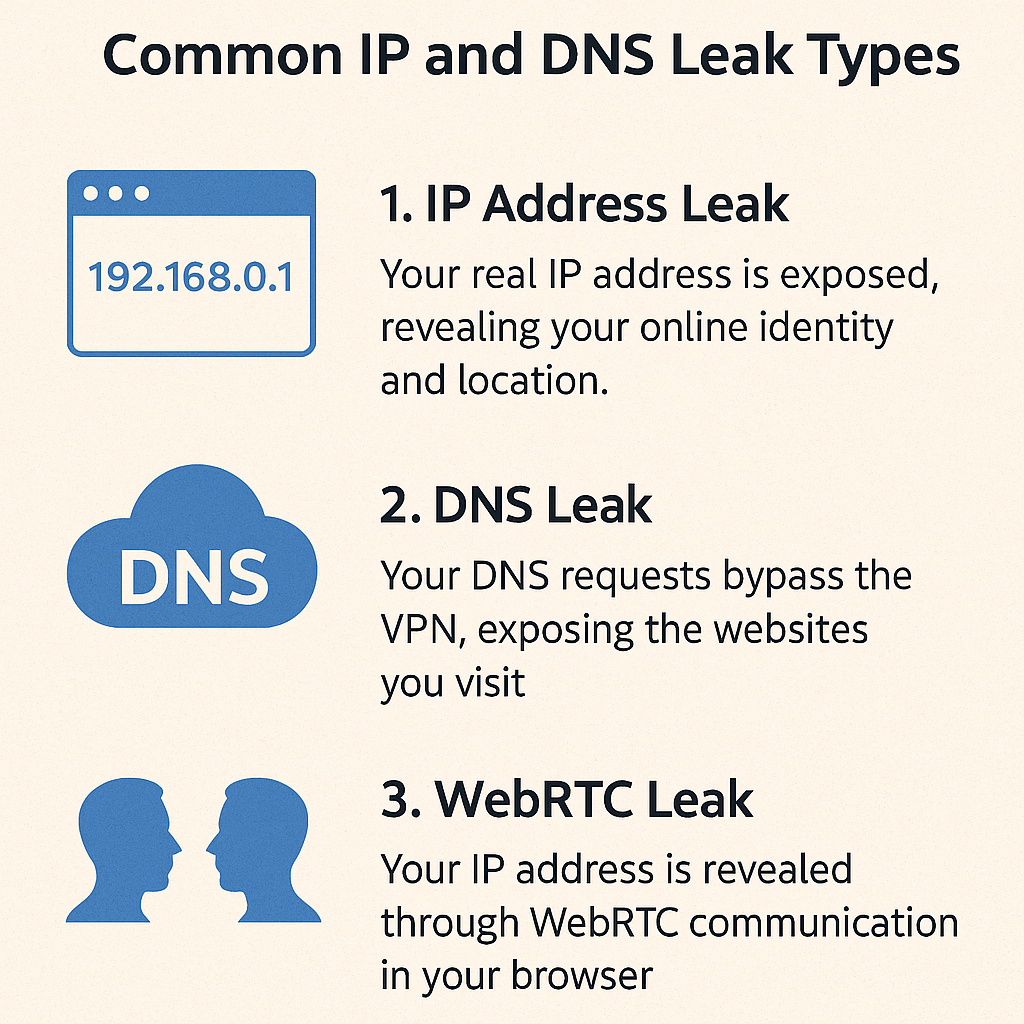
- Resolver mismatch: System sends DNS to the default adapter while app traffic is tunneled.
- Mixed adapters: Secondary interfaces stay active and handle lookups by mistake.
- DoH or DoT overrides: A browser or app uses its own encrypted resolver that does not match policy.
Browser checks
- Connect the VPN or configure the proxy in the application.
- Open a fresh browser profile or private window to avoid stale state.
- Check public IP again using a neutral page like currentipaddress.com.
- Run a DNS leak test of your choice and confirm resolver names or ASN match the trusted path.
- Run a WebRTC leak test. If it shows local or private addresses only, and no direct public alternative, it passes.
Terminal checks
# Windows
nslookup example.com
ipconfig /all | findstr /i dns
route print

# Linux
dig +short example.com @your.resolver.ip
resolvectl status
ip route

# macOS
dscacheutil -q host -a name example.com
scutil --dns
netstat -rn
Resolver results should reference the trusted resolver. Route tables should prefer the VPN or the proxy facing adapter for the tested app.
IPv6 behavior
- If you intend to tunnel IPv6, confirm that public IPv6 changes to the trusted range and that DNS AAAA answers follow the same path.
- If you intend to disable IPv6, confirm that there is no public IPv6 address and that AAAA requests do not leak.
Repeatable verification steps

- Record public IP before connection.
- Connect and verify public IP changes.
- Confirm DNS resolver identity and path.
- Test WebRTC in a clean browser profile.
- Reboot or sleep and resume, then repeat the checks.
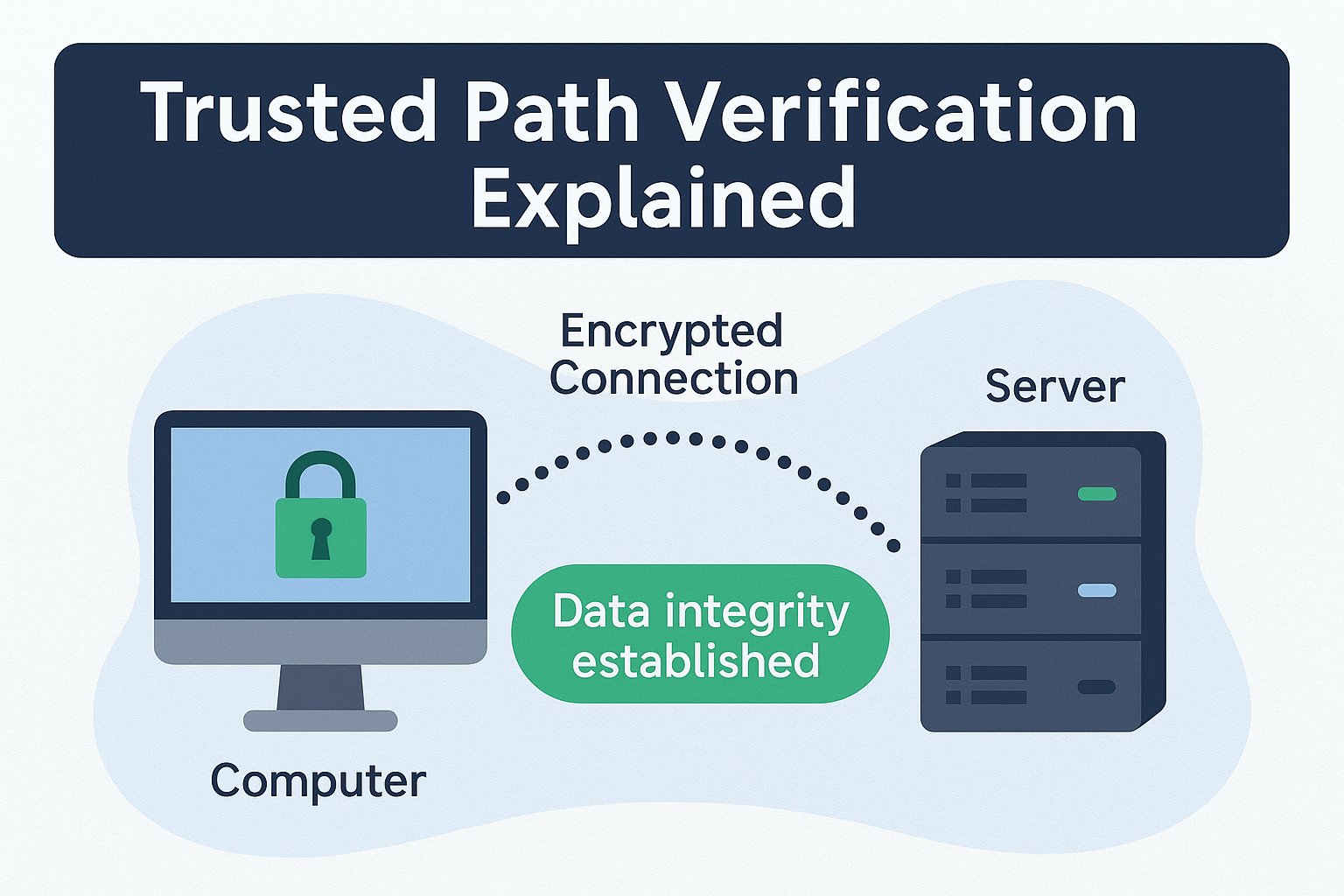
Trusted path verification
Common fixes if a test fails
- Bind and deny: Bind the app to the intended adapter and deny egress outside that path.
- Pin the resolver: Use a DNS server reachable only through the trusted path.
- Unify IPv6 policy: Either tunnel IPv6 or disable it. Avoid mixed states.
- Browser profile: Use a fresh profile for tests to avoid cached permissions.
Summary checklist
- Confirm public IP before and after connection using a neutral IP page.
- Verify DNS resolver identity and route. Keep it on the same path as app traffic.
- Decide and enforce IPv6 behavior explicitly.
- Include WebRTC in browser tests, then repeat after reboot.