
1) Monitor vs Armor
Monitor (this guide)
- Real-time watch for announce IP leaks.
- Safelist your known locations (home IP, VPN egress, seedbox, third-party SOCKS5).
- Email/Telegram alerts and optional webhooks.
Armor
- Includes Monitor + first-party SOCKS5 proxy.
- Enforce announce routing via Safelist.
- Use Armor if you want a first-party SOCKS5. If you already have a third-party SOCKS5, Monitor works with it — just Safelist its domain/IP.
2) Add your location to Safelist
Safelist marks announces from trusted locations as Covered. Add your current public IP (home or VPN egress). If you use a seedbox or third-party SOCKS5, add its domain or IP too.
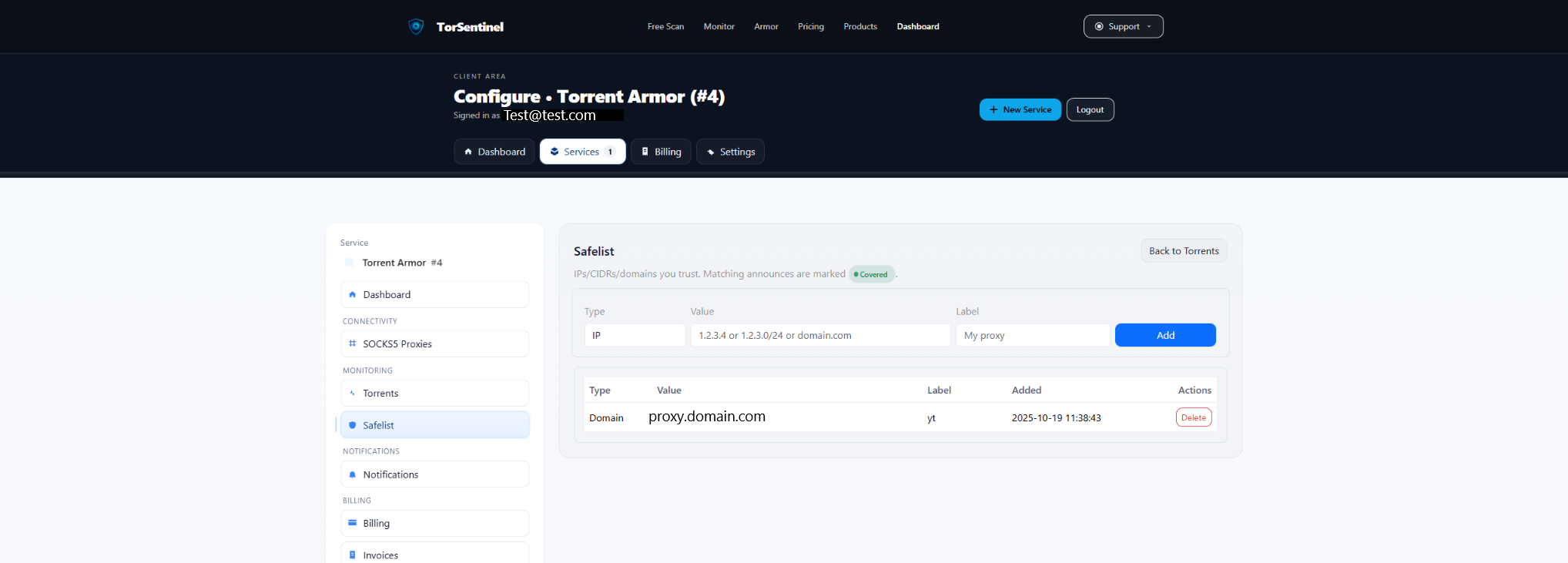
Quick reference
Type: IP or Domain
Value: 203.0.113.42 (VPN IP example) OR proxy.yourprovider.example
Label: My VPN IP / My SOCKS5Tip: If your provider rotates egress IPs, add the /24 (e.g., 203.0.113.0/24) or Safelist the proxy domain if it maps to a pool.
3) Using a third-party SOCKS5 with Monitor
TorSentinel Monitor observes tracker announces; it does not require TorSentinel Armor. If you already use a SOCKS5 from your VPN, seedbox, or provider, keep using it:
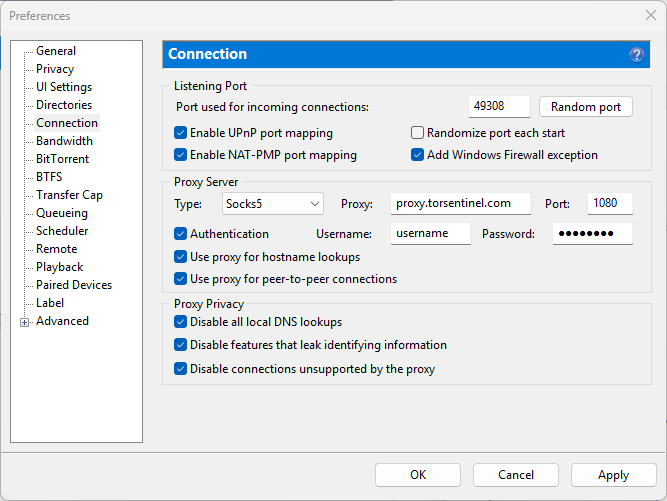
- Ensure the client uses the proxy for trackers/announces (and hostname lookups if available).
- Add the proxy’s domain or IP to Safelist so announces are marked Covered.
- If your provider rotates IPs, Safelist the
/24range or the proxy domain.
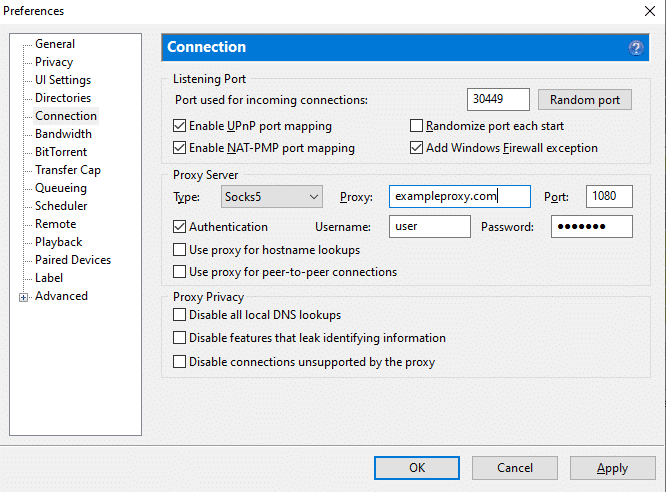
Quick reference
Proxy Type: SOCKS5
Host: your.proxy.example.com
Port: 1080 (example)
Auth: As provided by your provider
Client: Enable for trackers/announces (and hostname lookups)Important: Add your.proxy.example.com (or its IP) to Safelist so Monitor recognizes announces as Covered.
4) BitTorrent announce checks
5) Start the Test Torrent
Use Services → Torrents → Test Torrent. When BitTorrent announces from a Safelisted IP or proxy, state shows Monitoring and Last Seen updates.
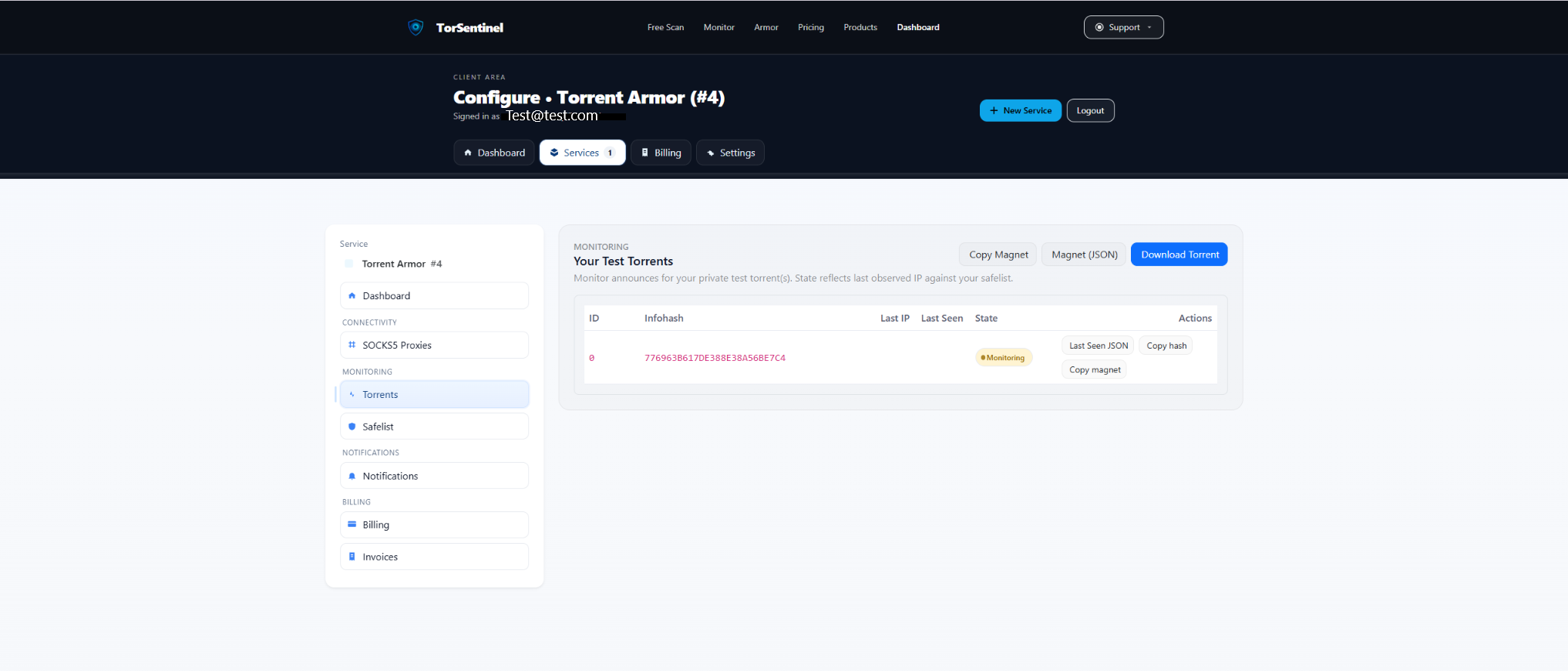
- Click Copy magnet (or Download Torrent) and add it in BitTorrent.
- Wait 1–3 minutes for an announce cycle.
- Confirm the dashboard shows a recent Last Seen.
No content is downloaded. The test torrent is metadata-only and validates announce routing.
6) Alerts & notifications
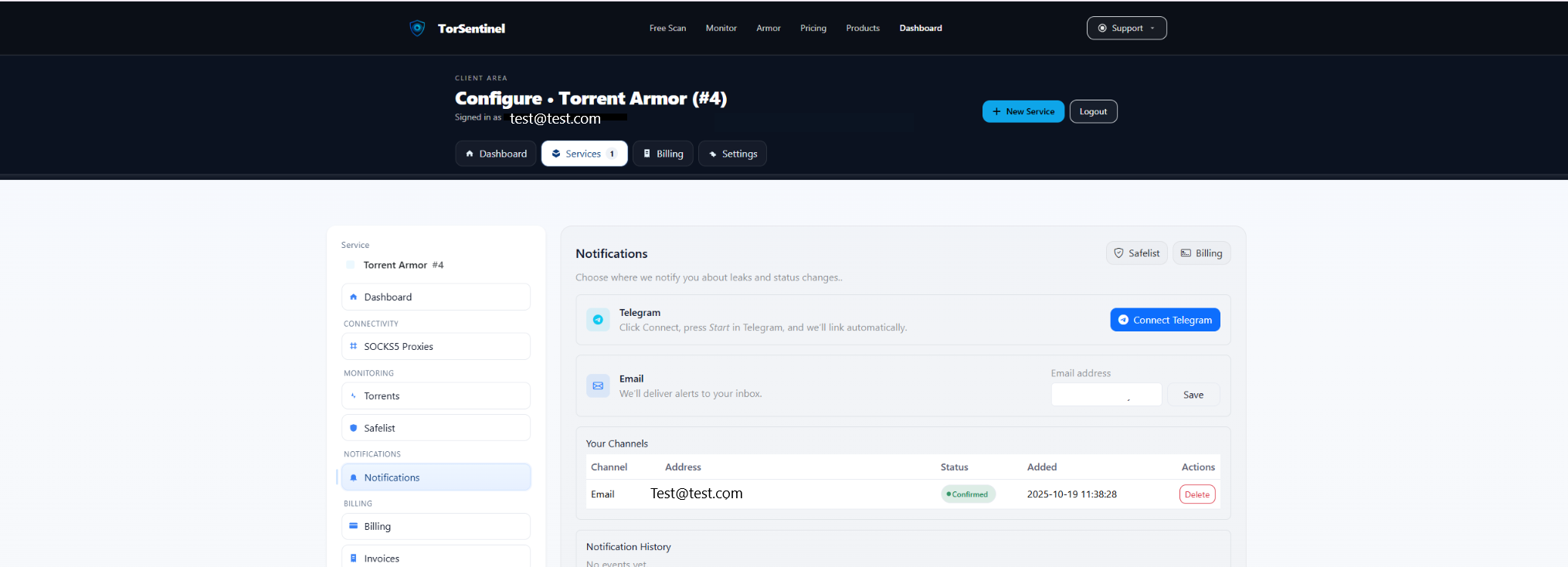
- Add your address and click Save.
- Confirm the verification email.
Telegram
- Click Connect Telegram and press Start in the bot.
7) Verify coverage
- Covered — announce source matches your Safelist (expected home/VPN/seedbox/proxy IP).
- Uncovered — announce source is outside Safelist. Investigate VPN disconnects, seedbox mis-routing, or wrong interface binding.
FAQ & Troubleshooting
Does Monitor require TorSentinel’s SOCKS5?
No. Monitor works with any egress path (direct, VPN, seedbox, or a third-party SOCKS5). Just add the egress domain/IP to Safelist so announces are marked Covered.
My proxy rotates IPs — how do I keep coverage?
Ask your provider for a stable /24 and add that range in Safelist (e.g., 198.51.100.0/24). If rotation spans multiple ranges, Safelist the proxy domain or all ranges you use.
Test torrent doesn’t update
- Verify the torrent is added and not paused.
- If on VPN, ensure the app is bound to the VPN interface.
- Check Safelist includes your current IP/domain or /24.
Switching to Armor later
Follow the TorSentinel Armor — BitTorrent guide to enable SOCKS5. Your Monitor settings carry over.