
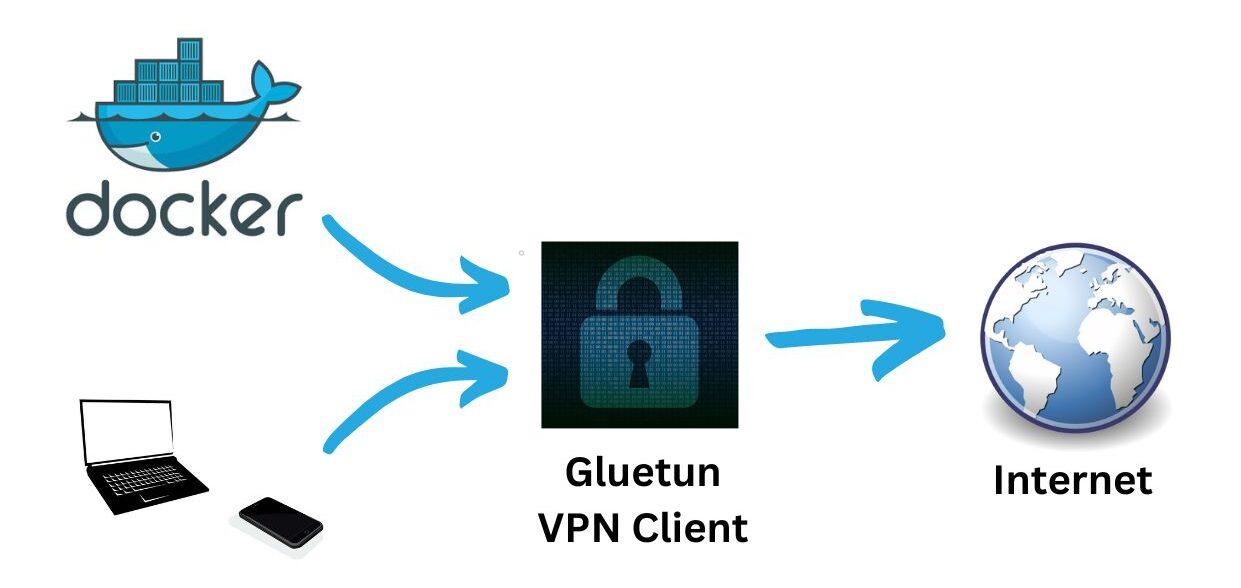
1) Docker Compose (Gluetun + Deluge)
Deluge shares the Gluetun network namespace. Publish Web UI and ports on the gluetun service only.
services:
gluetun:
image: qmcgaw/gluetun
container_name: gluetun
cap_add: [NET_ADMIN]
environment:
- TZ=UTC
# Choose ONE stack (WireGuard shown):
- VPN_SERVICE_PROVIDER=custom
- VPN_TYPE=wireguard
- WIREGUARD_PRIVATE_KEY=<your_private_key>
- WIREGUARD_ADDRESSES=<10.x.x.x/32>
- SERVER_HOSTNAMES=<provider_servername>
# Or OpenVPN: OPENVPN_USER / OPENVPN_PASSWORD / OPENVPN_CONFIG
volumes:
- ./gluetun:/gluetun
ports:
- "8112:8112" # Deluge Web UI (via gluetun)
- "58846:58846" # Deluge daemon (optional)
- "58946:58946" # BitTorrent TCP
- "58946:58946/udp" # BitTorrent UDP
restart: unless-stopped
deluge:
image: lscr.io/linuxserver/deluge:latest
container_name: deluge
network_mode: "service:gluetun"
depends_on: [gluetun]
environment:
- PUID=1000
- PGID=1000
- TZ=UTC
- DELUGE_LOGLEVEL=info
volumes:
- ./deluge/config:/config
- ./deluge/downloads:/downloads
restart: unless-stoppedAccess Deluge Web at http://HOST:8112 (default password deluge — change it).
2) Safelist your egress
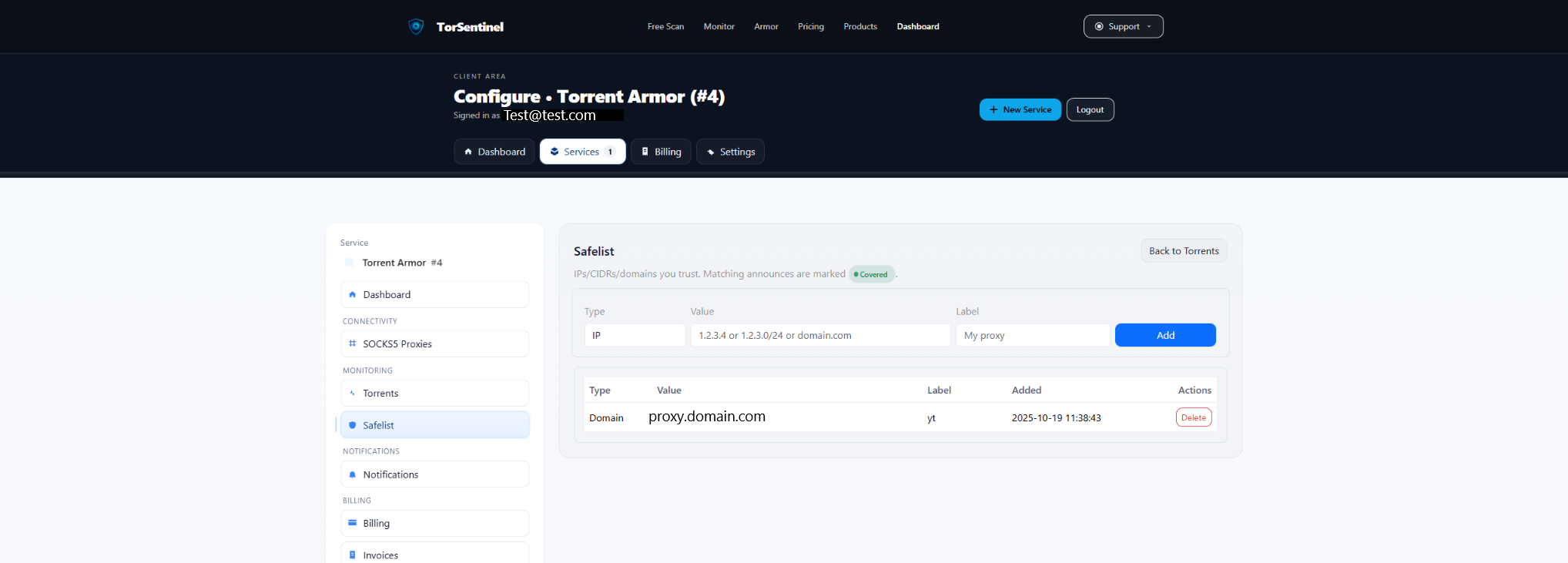
/24 range.Type: IP or CIDR
Value: 198.51.100.42 # Your VPN egress IP
or 198.51.100.0/24 # Range if provider rotates
Label: Gluetun egressRotating egress? Prefer a /24 covering your provider’s pool to keep announces Covered.
3) Optional: third-party SOCKS5
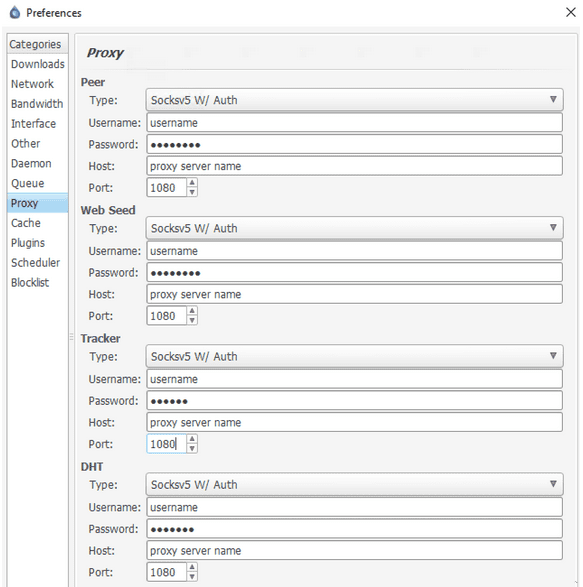
Deluge supports SOCKS5. If you configure a third-party proxy (instead of VPN-only), set it in Preferences → Proxy, then Safelist the proxy domain/IP so announces appear Covered.
Proxy Type: SOCKS5
Apply To: Trackers (required), Peers (optional)
Host/Port: proxy.example.com : 1080
Auth: provider credentials
Option: Proxy hostnames (enabled)You can also keep VPN + SOCKS5 together; in that case, Safelist both the VPN egress and the proxy domain.
4) Deluge checks
http://HOST:8112 and that torrents aren’t paused.58946 (TCP/UDP) is published on gluetun.
5) Start the Test Torrent
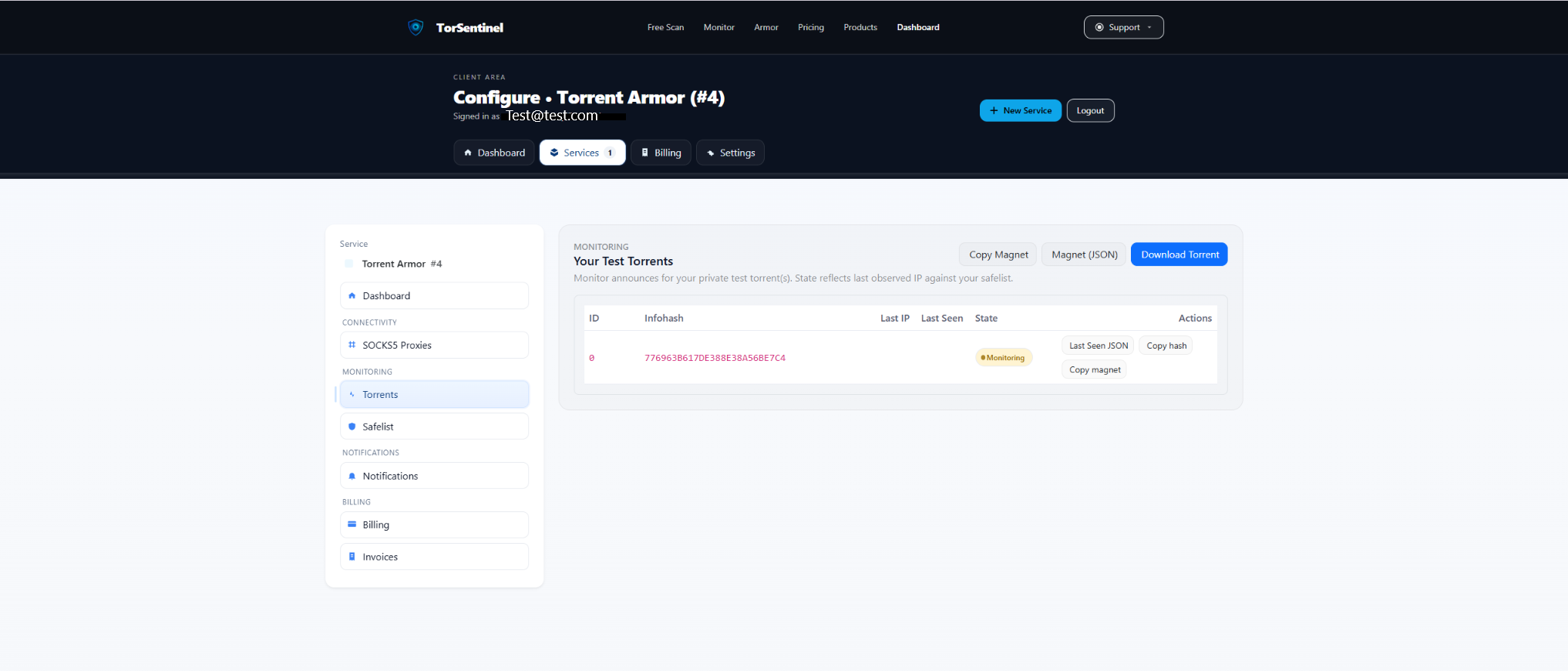
- Open Services → Torrents → Test Torrent and copy the magnet (or download the .torrent).
- Add it in Deluge; wait ~1–3 minutes for an announce.
- Confirm the dashboard shows Monitoring and a recent Last Seen.
No content is downloaded. The test torrent is metadata-only for announce validation.
6) Alerts
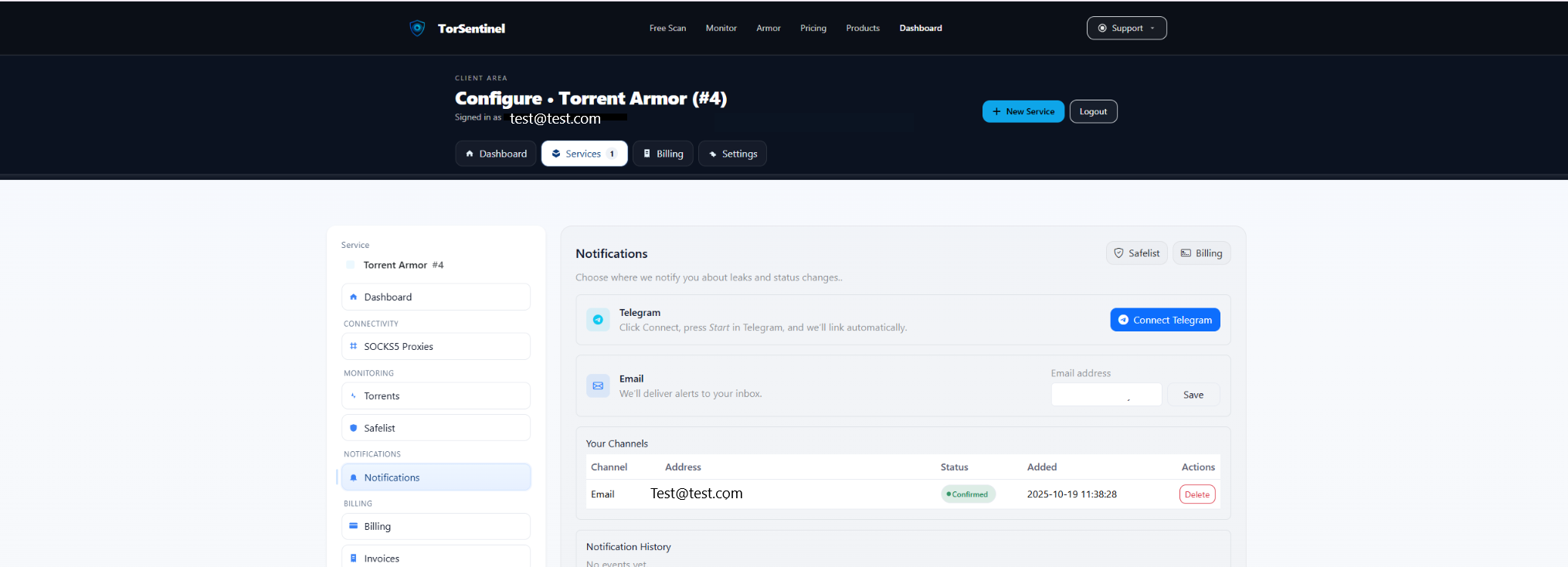
- Email: add your address → Save → confirm the verification email.
- Telegram: click Connect Telegram → press Start in the bot.
FAQ & Troubleshooting
Armor vs Monitor with Deluge
Monitor: Safelist your VPN egress or a third-party SOCKS5 domain/IP. Armor: use TorSentinel SOCKS5 and Safelist the TorSentinel proxy domain.
Can I use VPN + SOCKS5 together?
Yes. Deluge can proxy Trackers via SOCKS5 while running inside Gluetun’s VPN. Safelist the proxy domain and (optionally) the VPN egress if you switch modes.
Peers via SOCKS5 reduce speeds
Proxy Trackers only. Announces still originate from the SOCKS5 proxy; peers can connect directly via VPN.