
1) About Armor vs Monitor
Armor
- Includes everything in Monitor.
- Adds a first-party SOCKS5 proxy optimized for torrent apps.
- Lets you enforce announce routing with Safelist.
Monitor
- Realtime watch for announce IP leaks.
- Alerts by Email/Telegram and optional webhooks.
- Works with VPNs and third-party proxies; Armor replaces that proxy with TorSentinel’s.
2) Find your SOCKS5 endpoint
In Services → SOCKS5 Proxies, copy the proxy domain and choose any listed port. Authentication uses your TorSentinel account credentials.
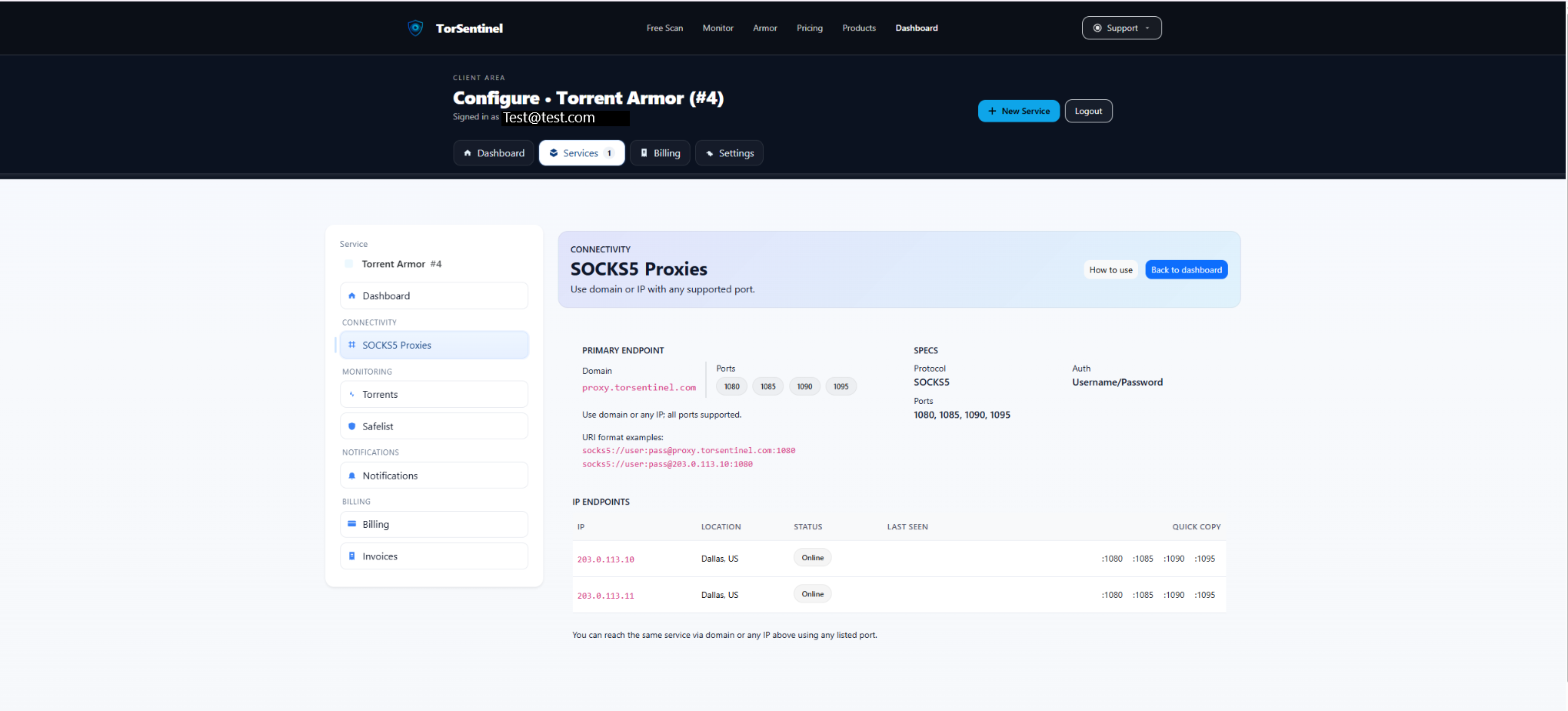
Quick reference
Protocol: SOCKS5
Host: proxy.torsentinel.com
Port: 1080 (or 1085, 1090, 1095)
Auth: Your TorSentinel username & passwordTip: You may also use a specific IP endpoint if shown under “IP Endpoints”.
3) Configure Vuze to use Armor
proxy.torsentinel.com and a supported Port. Enable Authentication and enter your TorSentinel credentials.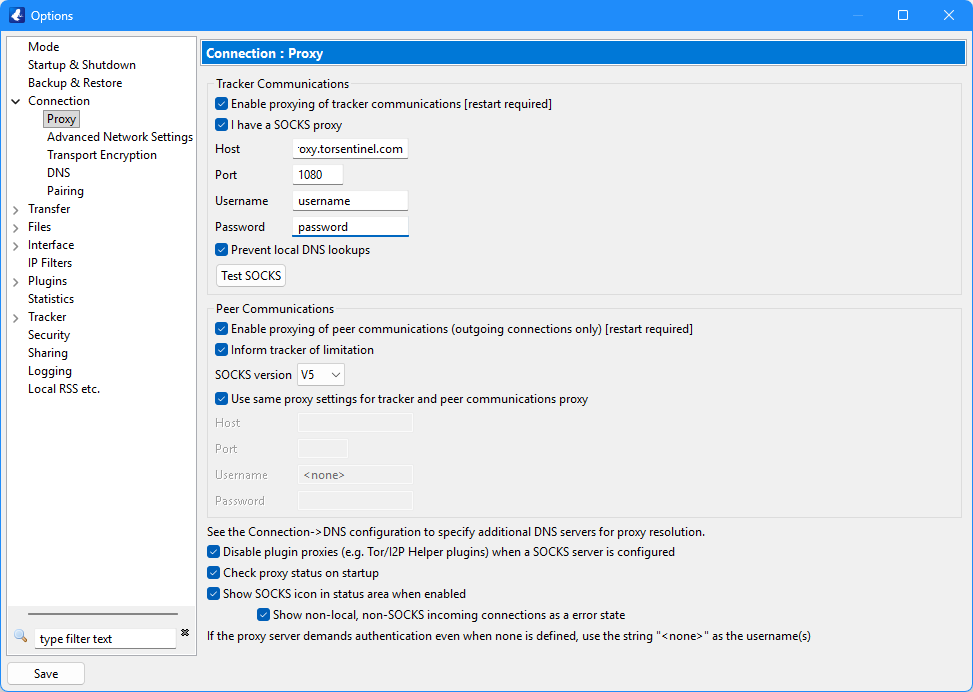
proxy.torsentinel.com.4) Add your proxy to Safelist

Type: Domain
Value: proxy.torsentinel.com
Label: Armor proxyYou can also allow an IP or a /24 range for specific endpoints shown under “IP Endpoints”.
5) Start the Test Torrent
Use the built-in Test Torrent from your dashboard (Services → Torrents). When Vuze announces via Armor, state shows Monitoring and Last Seen updates.
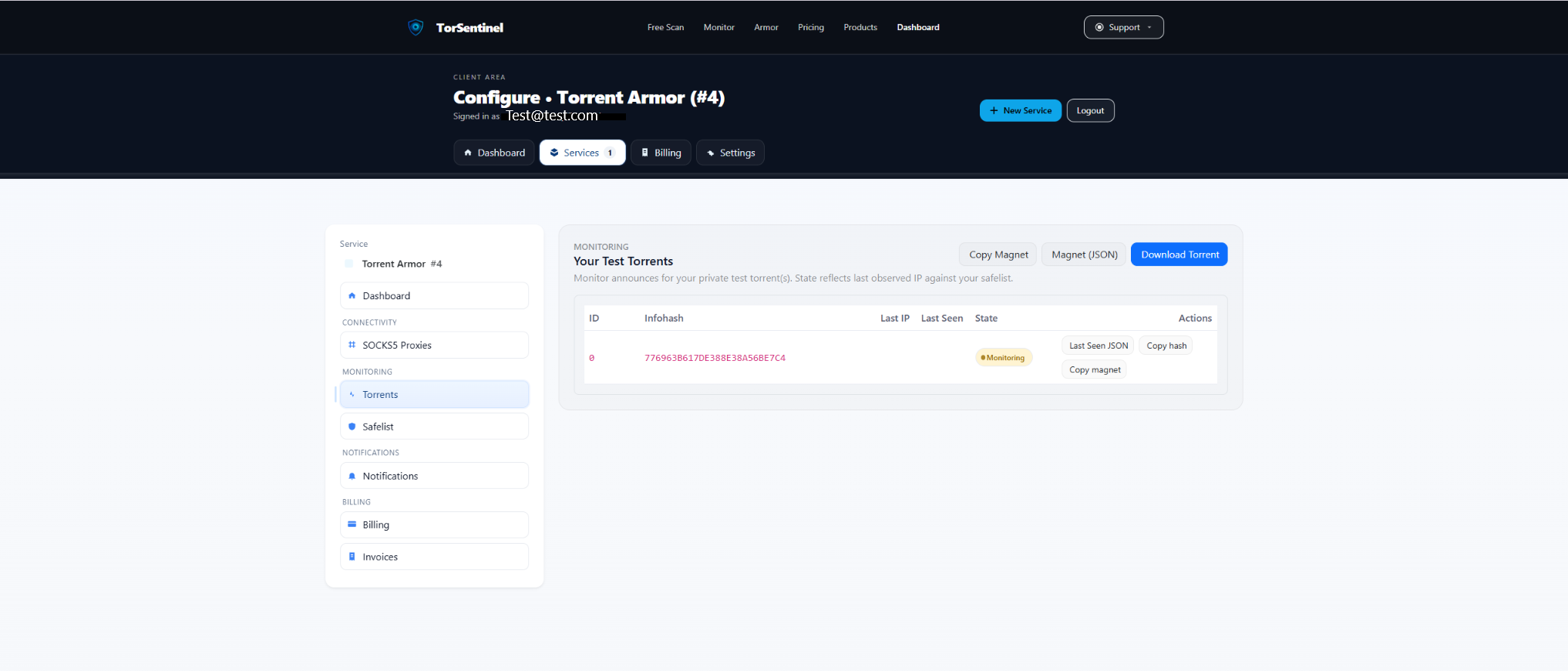
- Click Copy magnet and add it in Vuze.
- Wait ~1–3 minutes for an announce cycle.
- Confirm the dashboard shows a recent Last Seen.
6) Set up alert notifications
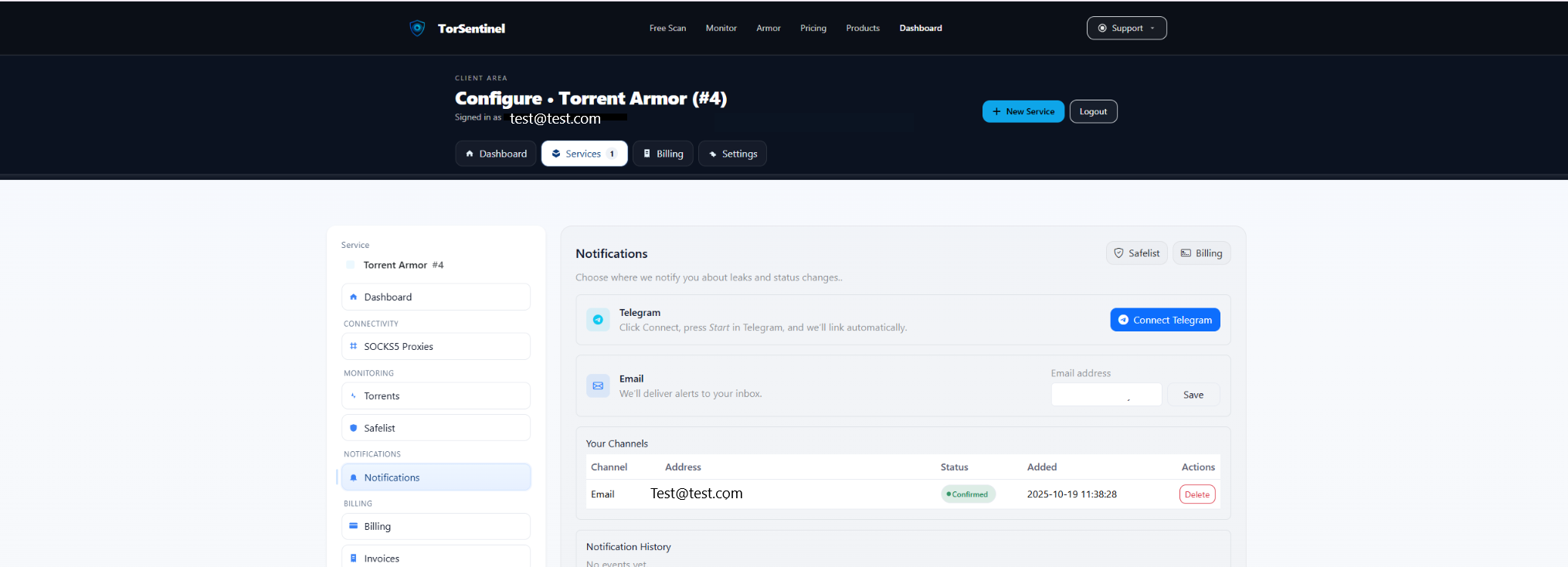
- Add your address and click Save.
- Confirm the verification email.
Telegram
- Click Connect Telegram and press Start in the bot.
FAQ & Troubleshooting
Should I proxy Peers as well as Trackers?
Trackers should always be proxied. Peer proxying is optional and can reduce peer connectivity in some environments. If speeds or connectivity suffer, keep Trackers proxied and disable Peers proxying.
Can I use Armor with a VPN?
Yes. Armor handles your announces via TorSentinel’s SOCKS5. If you also use a VPN, optionally bind Vuze to the VPN interface and add the VPN /24 to Safelist alongside proxy.torsentinel.com.
Vuze can’t connect with SOCKS5
- Try a different port: 1080, 1085, 1090, 1095.
- Re-enter username/password.
- Enable Use proxy for hostname lookups.
- Test an IP Endpoint from the SOCKS5 page if available.
Monitor-only instead?
Use the TorSentinel Monitor — Vuze guide if you have a third-party proxy or just need monitoring without TorSentinel’s SOCKS5.