
1) Armor vs Monitor
Armor
- Everything in Monitor.
- First‑party SOCKS5 proxy tuned for torrent apps.
- Enforce announce routing via Safelist.
Monitor
- Real‑time watch for announce IP leaks.
- Email/Telegram alerts and optional webhooks.
2) Find your SOCKS5 endpoint
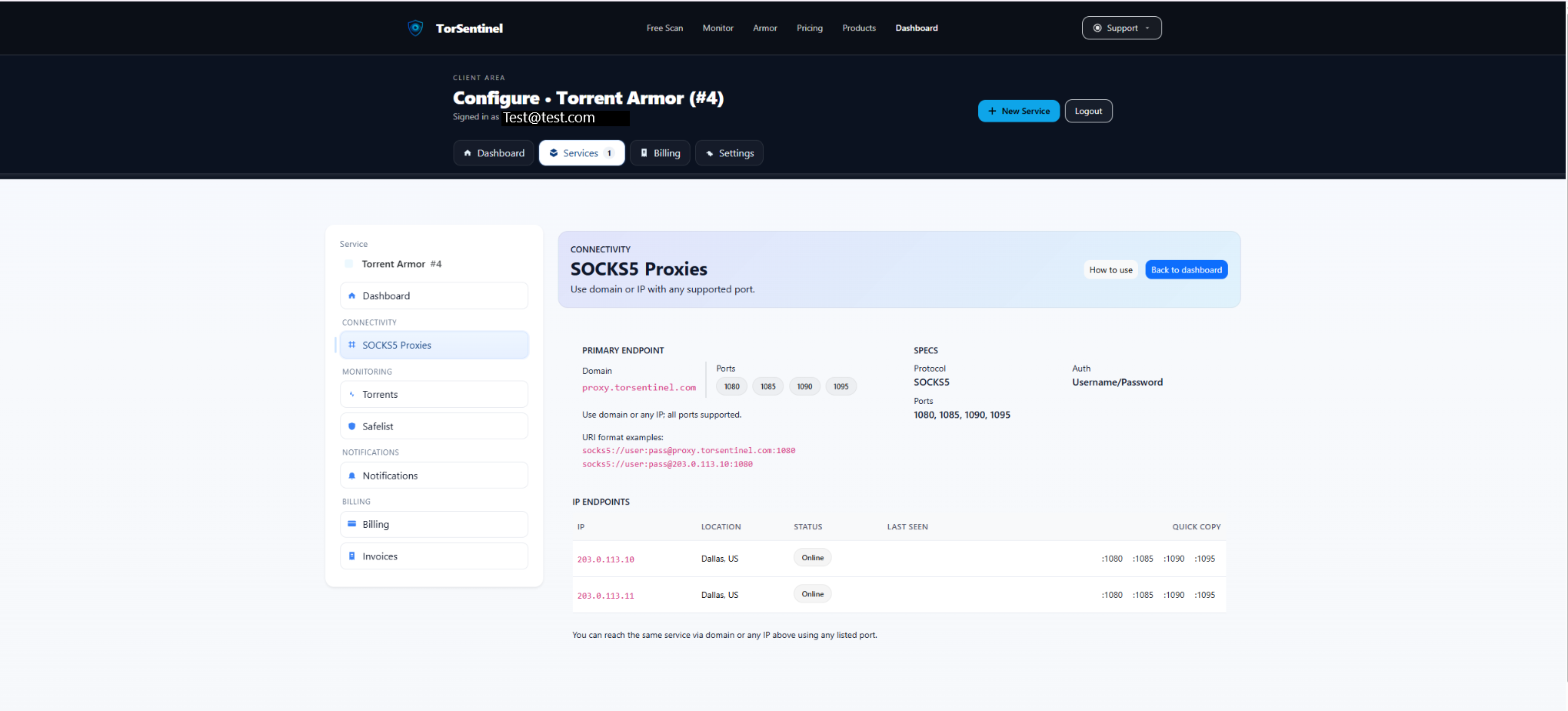
In Services → SOCKS5 Proxies copy the proxy domain and choose any listed port. Auth uses your TorSentinel credentials.
Quick reference
Protocol: SOCKS5
Host: proxy.torsentinel.com
Port: 1080 (or 1085, 1090, 1095)
Auth: Username & Password (your TorSentinel credentials)Tip: If available, you can use a specific IP from IP Endpoints.
3) Configure uTorrent
proxy.torsentinel.com, and choose a supported Port.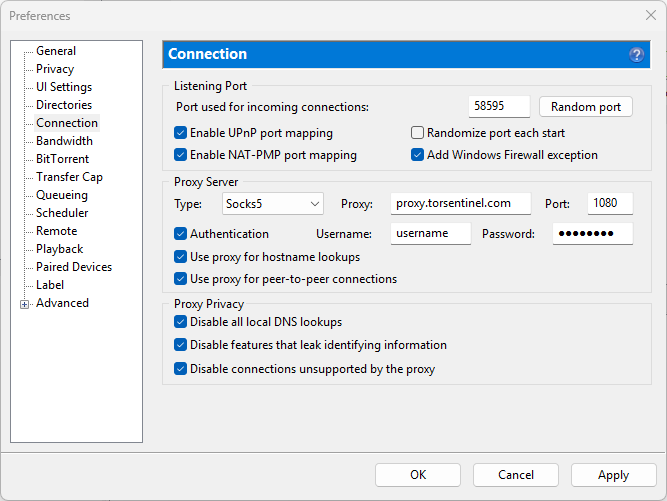
Heads‑up: uTorrent Web has limited proxy controls and may not fully support tracker proxying. For full control, use uTorrent Classic.
4) Safelist your proxy
Safelist marks announces from trusted locations as Covered. Add the Armor proxy domain shown on your SOCKS5 page.

Type: Domain
Value: proxy.torsentinel.com
Label: My proxyYou can also allow an IP or a /24 range for specific endpoints.
5) Start the Test Torrent
Use Services → Torrents → Test Torrent. When uTorrent announces via Armor, state shows Monitoring and Last Seen updates.
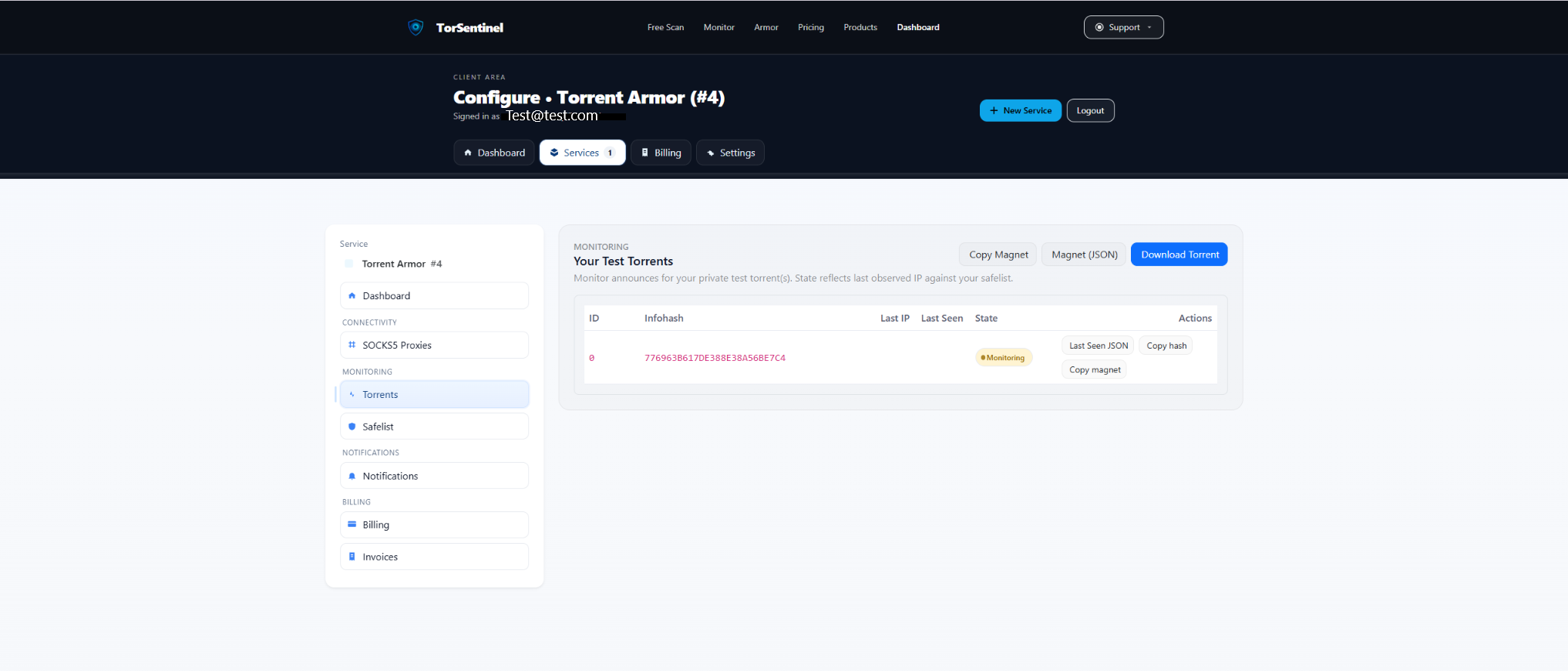
- Click Copy magnet (or Download Torrent) and add it in uTorrent.
- Wait 1–3 minutes for an announce cycle.
- Confirm the dashboard shows a recent Last Seen.
No content is downloaded. The test torrent is metadata‑only and validates announce routing.
6) Alerts & notifications
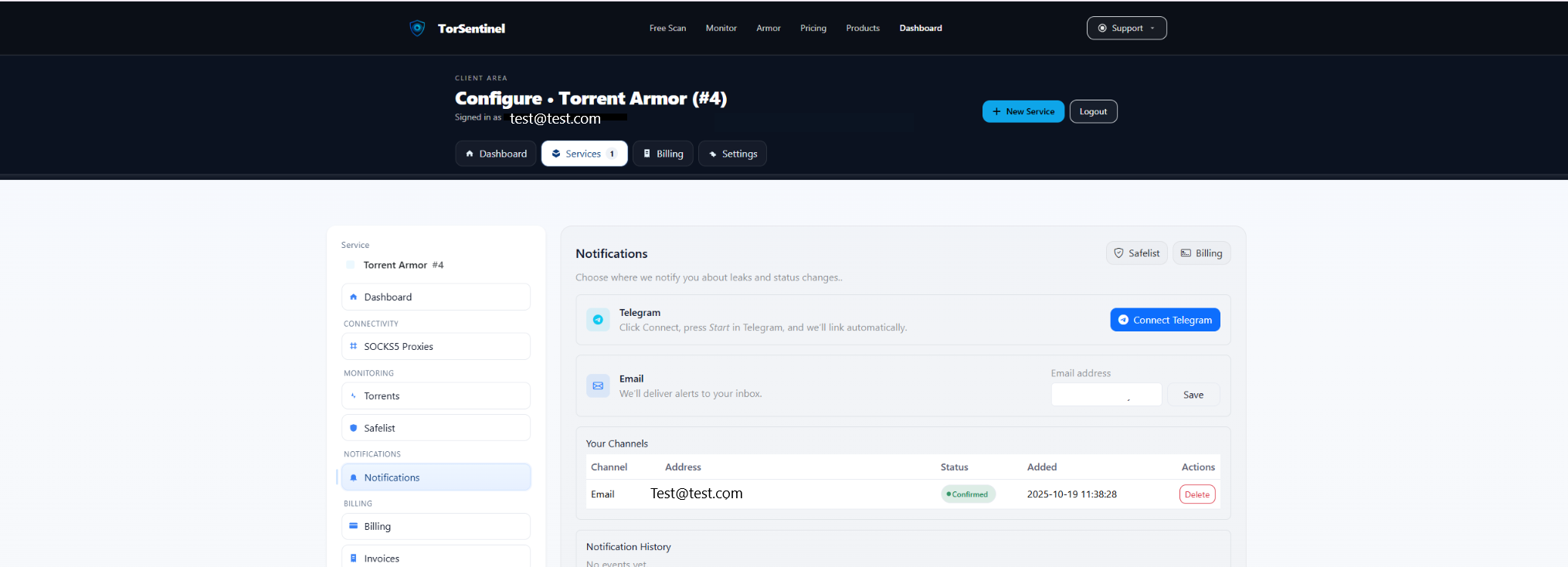
- Add your address and click Save.
- Confirm the verification email.
Telegram
- Click Connect Telegram and press Start in the bot.
FAQ & Troubleshooting
uTorrent won’t connect with SOCKS5
- Try a different port (1080, 1085, 1090, 1095).
- Re‑enter username/password.
- Enable Use proxy for hostname lookups.
- Test an IP Endpoint if available.
Test torrent doesn’t update
- Verify the torrent is added and not paused.
- Ensure tracker traffic is using the proxy (Use proxy for peer‑to‑peer + host lookups).
- Check Safelist includes the Armor domain/IP.
uTorrent Web vs Classic
uTorrent Web has limited proxy options and may not proxy announces fully. For strict coverage, use uTorrent Classic.