
1) About Armor vs Monitor
Armor
- Includes everything in Monitor.
- Adds a first-party SOCKS5 proxy optimized for torrent apps.
- Lets you enforce announce routing with Safelist.
Monitor
- Realtime watch for torrent announces IP leaks.
- Alerts by Email/Telegram and optional webhooks.
2) Requirements
- An active Armor service in your TorSentinel dashboard.
- A desktop torrent client (qBittorrent, Transmission, Deluge, etc.).
- Login to copy the SOCKS5 domain and supported ports.
3) Find your SOCKS5 endpoint
In Services → SOCKS5 Proxies copy the proxy domain and pick any listed port. Authentication uses your account username & password.
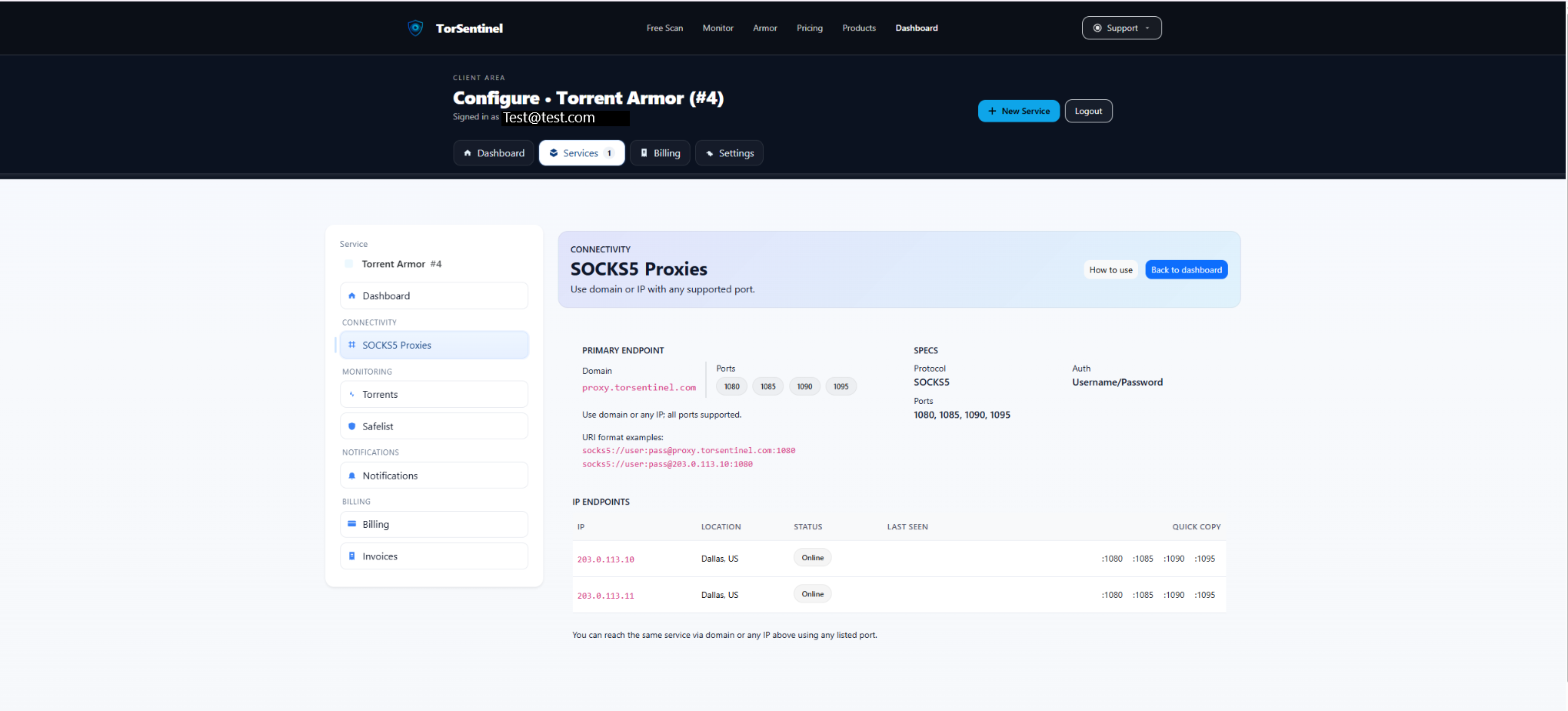
Quick reference
Protocol: SOCKS5
Host: proxy.torsentinel.com
Port: 1080 (or 1085, 1090, 1095)
Auth: Username & Password (your TorSentinel credentials)Tip: You may also use a specific IP endpoint if shown under “IP Endpoints”.
4) Configure your torrent client
proxy.torsentinel.com and Port to a supported port.5) Add your proxy to Safelist
Safelist marks announces coming from trusted locations as Covered. Add the Armor proxy domain shown on your SOCKS5 page.

Type: Domain
Value: proxy.torsentinel.com
Label: My proxyYou can also allow an IP or a /24 range for specific endpoints.
6) Start the Test Torrent
Use the built-in Test Torrent from your dashboard (Services → Torrents). When your client announces via Armor, state will show Monitoring and Last Seen will update.
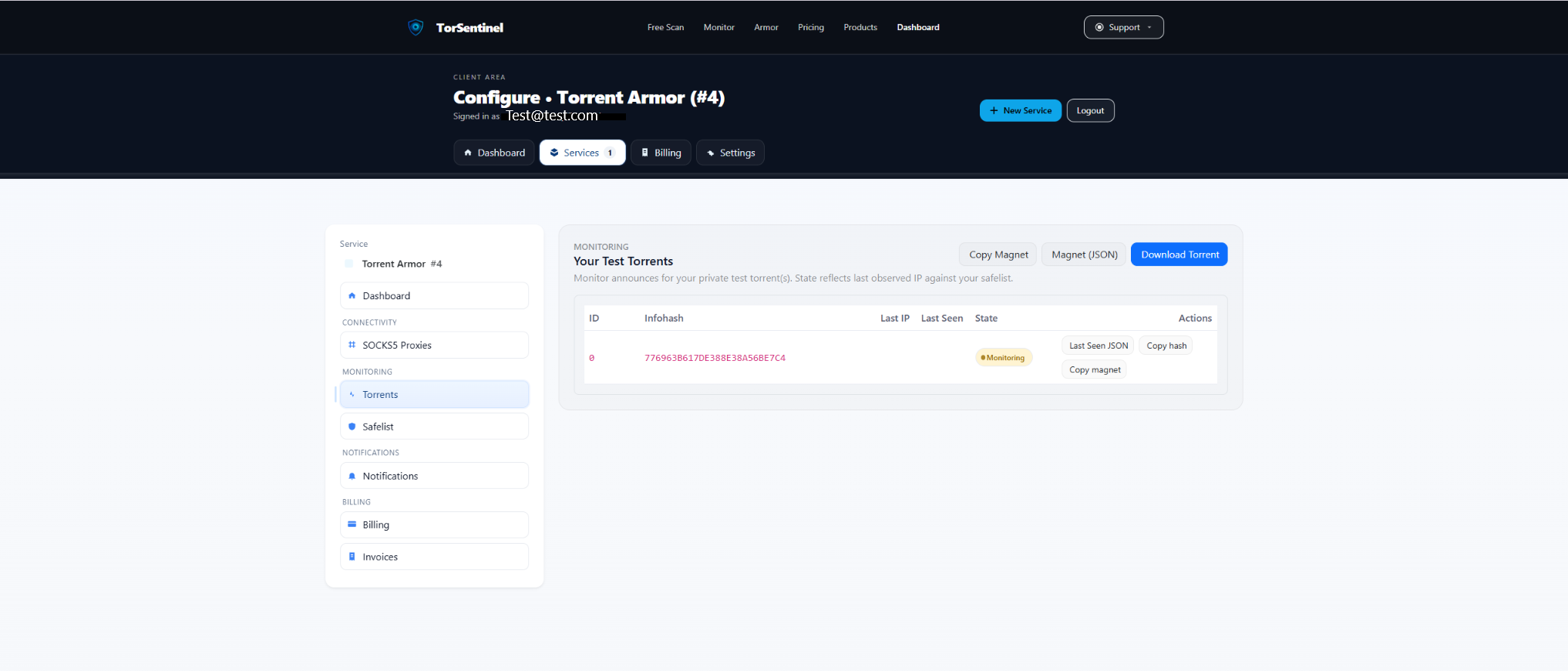
- Click Copy magnet (or Download Torrent) and add it in your client.
- Wait for an announce cycle (usually within 1–3 minutes).
- Confirm the dashboard shows a recent Last Seen.
No content is downloaded. The test torrent is metadata-only and exists to validate announce routing.
7) Set up alert notifications
Get instant alerts when announces come from an uncovered location, or when the test torrent stops reporting.
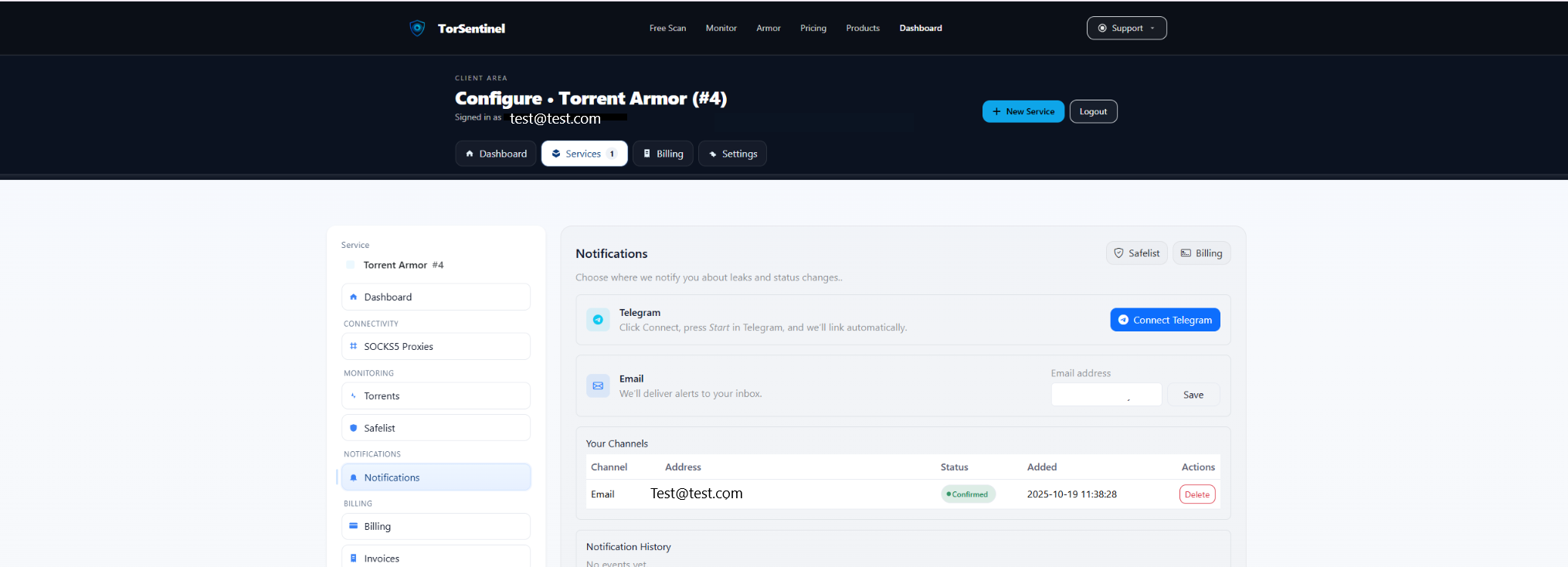
- Add your address and click Save.
- Confirm the verification email.
Telegram
- Click Connect Telegram and press Start in the bot.
FAQ & Troubleshooting
Client won’t connect with SOCKS5
- Try a different port (1080, 1085, 1090, 1095).
- Re-enter username/password.
- Test an IP Endpoint if available.
Test torrent doesn’t update
- Verify the torrent is added and not paused.
- Ensure the client uses the proxy for trackers/announces.
- Check Safelist includes the Armor domain/IP.
Covered vs Uncovered
Covered = matches your Safelist (expected proxy/IP). Uncovered = outside the Safelist; investigate for leaks or misconfiguration.