
1) About Armor vs Monitor
Armor (this guide)
- Includes Monitor.
- Adds TorSentinel SOCKS5 for announces.
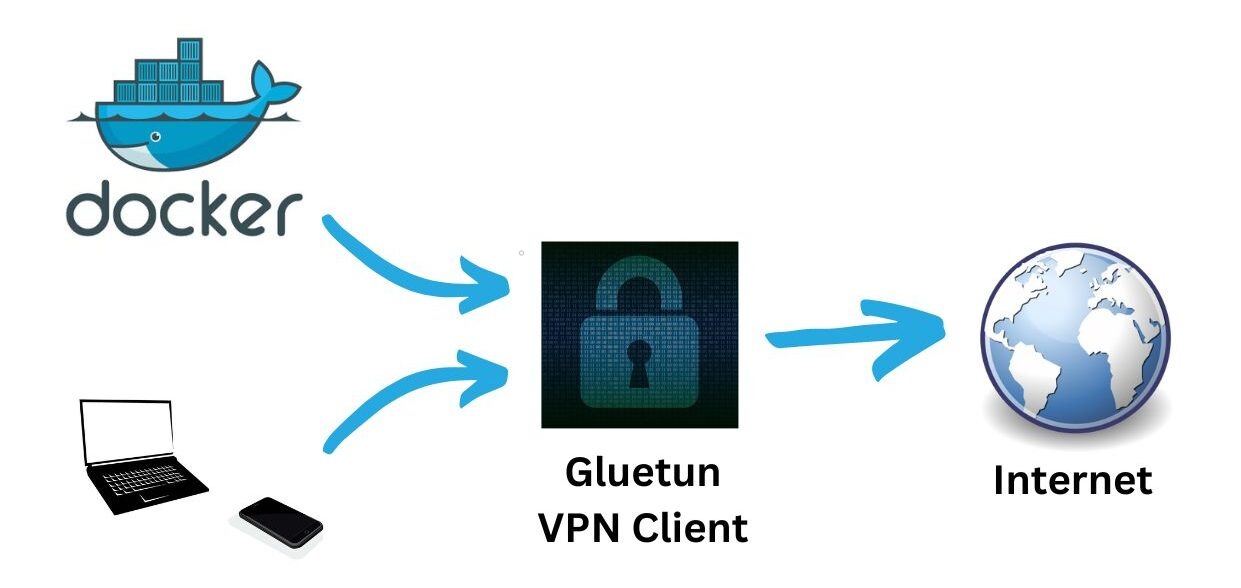
- Gluetun handles VPN egress; qBittorrent still sets SOCKS5 for Trackers.
Monitor
- Watches announce IPs and alerts.
- Safelist your VPN/seedbox egress or third-party proxy.
2) Docker Compose (Gluetun + qBittorrent)
qBittorrent shares the Gluetun network namespace. Expose Web UI and ports on Gluetun only.
services:
gluetun:
image: qmcgaw/gluetun
container_name: gluetun
cap_add: [NET_ADMIN]
environment:
- TZ=UTC
# Choose ONE stack (WireGuard shown):
- VPN_SERVICE_PROVIDER=custom
- VPN_TYPE=wireguard
- WIREGUARD_PRIVATE_KEY=<your_private_key>
- FIREWALL_VPN_INPUT_PORTS=<51413,8080>
- WIREGUARD_ADDRESSES=<10.x.x.x/32>
- SERVER_HOSTNAMES=<provider_servername>
# Or OpenVPN: set OPENVPN_USER/OPENVPN_PASSWORD/OPENVPN_CONFIG
volumes:
- ./gluetun:/gluetun
ports:
- "8080:8080" # qBittorrent Web UI (via gluetun)
- "51413:51413" # BitTorrent TCP
- "51413:51413/udp" # BitTorrent UDP
restart: unless-stopped
qbittorrent:
image: lscr.io/linuxserver/qbittorrent:latest
container_name: qbittorrent
network_mode: "service:gluetun"
depends_on: [gluetun]
environment:
- PUID=1000
- PGID=1000
- TZ=UTC
- WEBUI_PORT=8080
volumes:
- ./qbittorrent/config:/config
- ./qbittorrent/downloads:/downloads
restart: unless-stoppedTip: First boot might take a minute while Gluetun establishes the tunnel. Access Web UI at http://<host>:8080.
3) Find your SOCKS5 endpoint
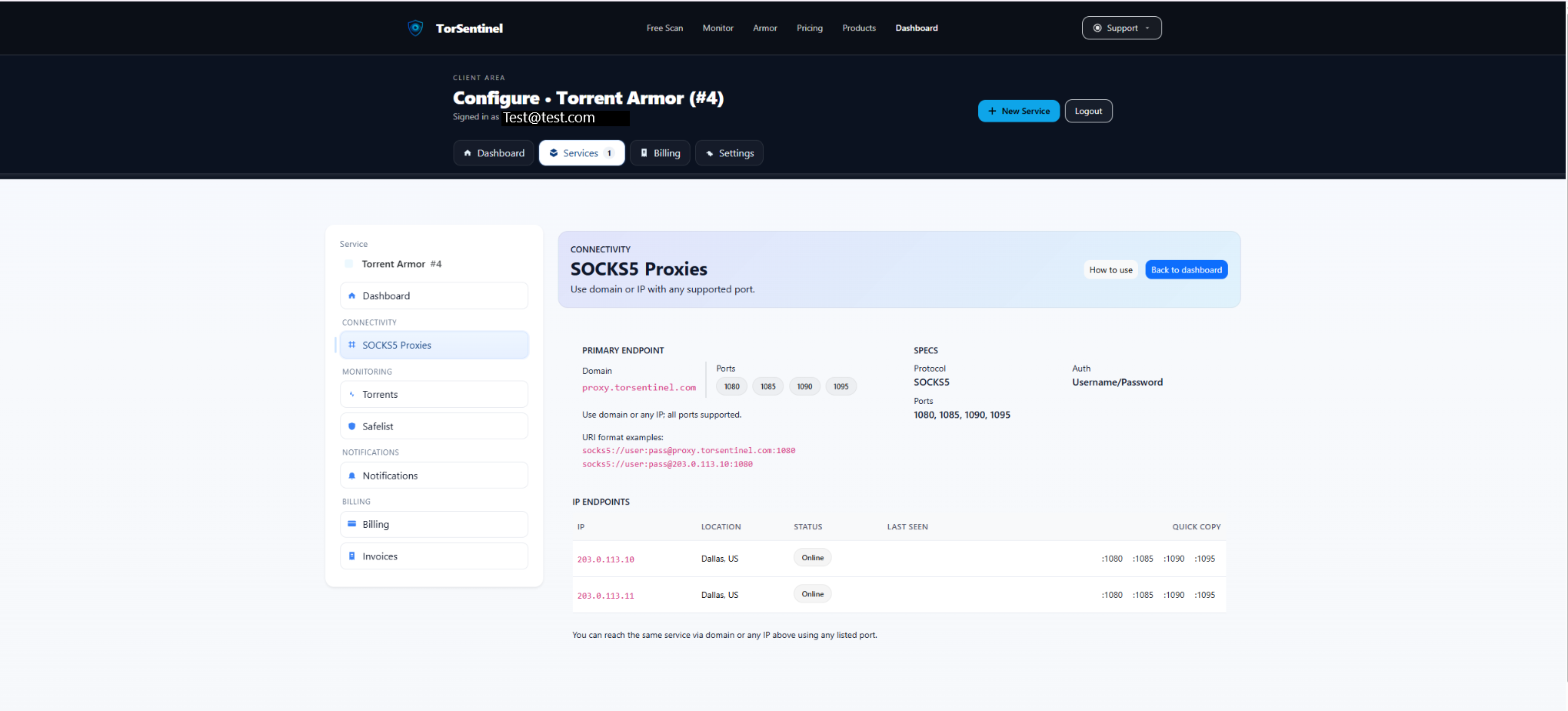
Protocol: SOCKS5
Host: proxy.torsentinel.com
Port: 1080 (or 1085, 1090, 1095)
Auth: Your TorSentinel username & password4) Configure qBittorrent SOCKS5
proxy.torsentinel.com, and a supported Port.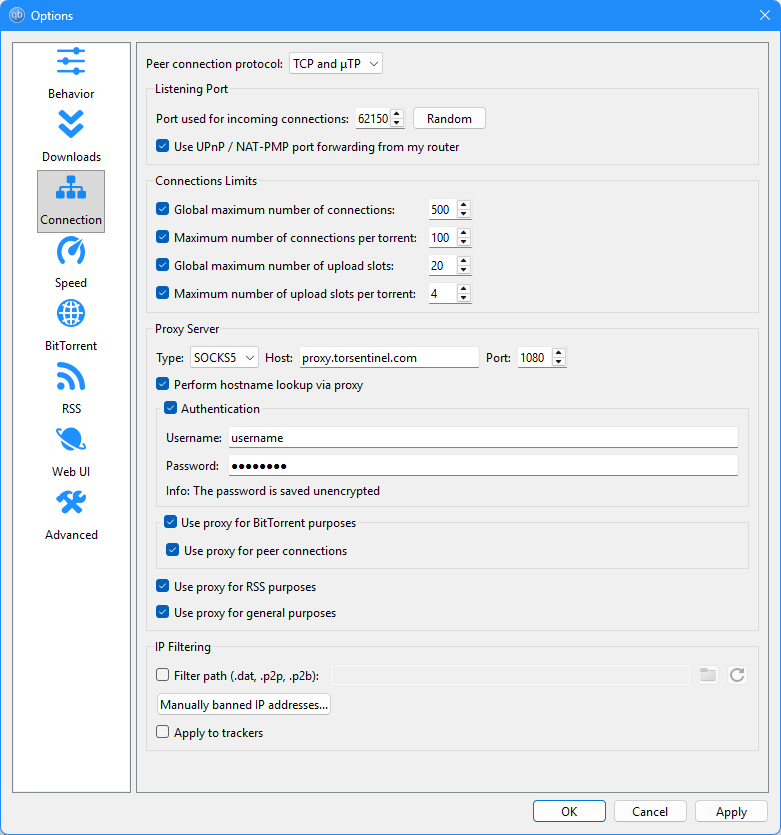
Using Gluetun + Armor together? Yes. The SOCKS5 session runs over your VPN tunnel; announces still originate from TorSentinel’s proxy. Safelist both if you sometimes disable SOCKS.
5) Add Armor proxy to Safelist

Type: Domain
Value: proxy.torsentinel.com
Label: Armor proxyIf using a specific IP endpoint from your SOCKS5 page, you may safelist that IP or its /24 as well.
6) Start the Test Torrent
Open Services → Torrents → Test Torrent, add the magnet in qBittorrent, then wait ~1–3 minutes for an announce.
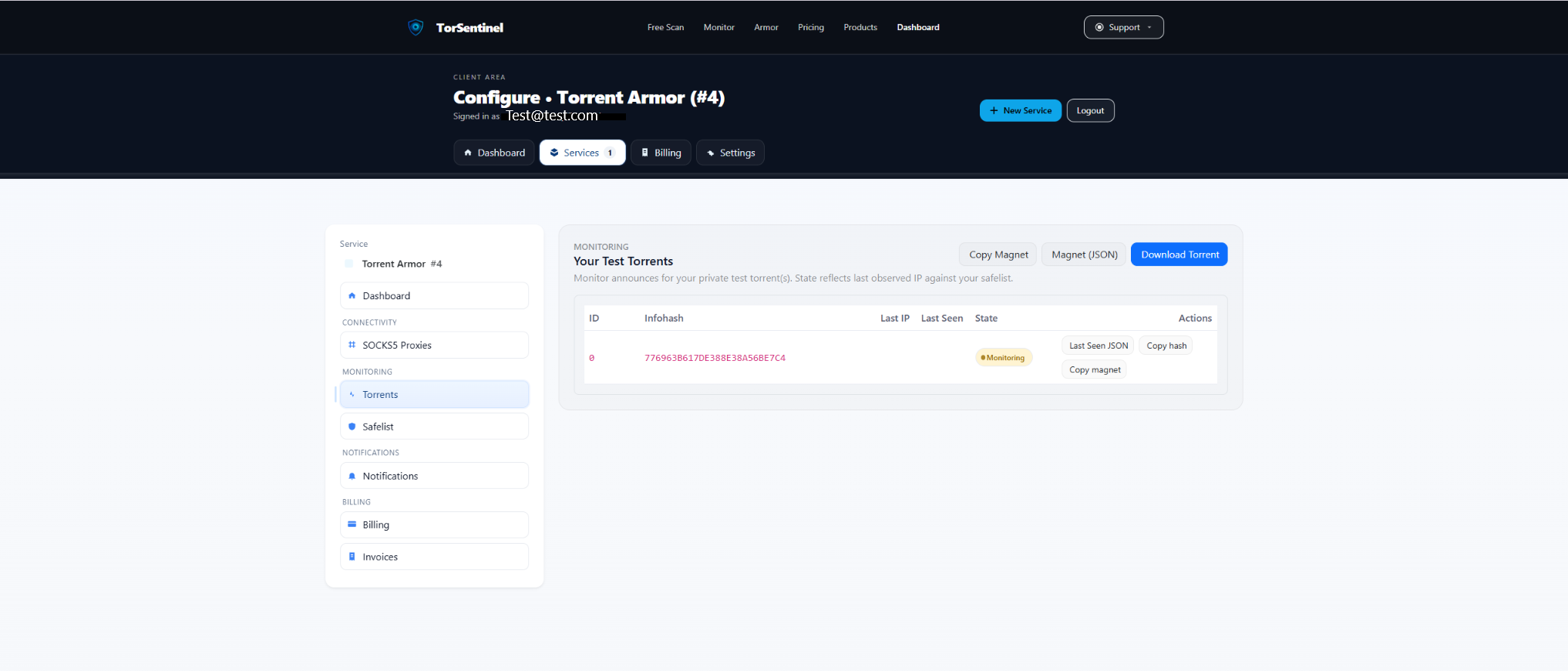
- Copy the magnet, add to qBittorrent.
- Confirm Monitoring state and recent Last Seen.
No content is downloaded. It only validates announce routing.
7) Alerts
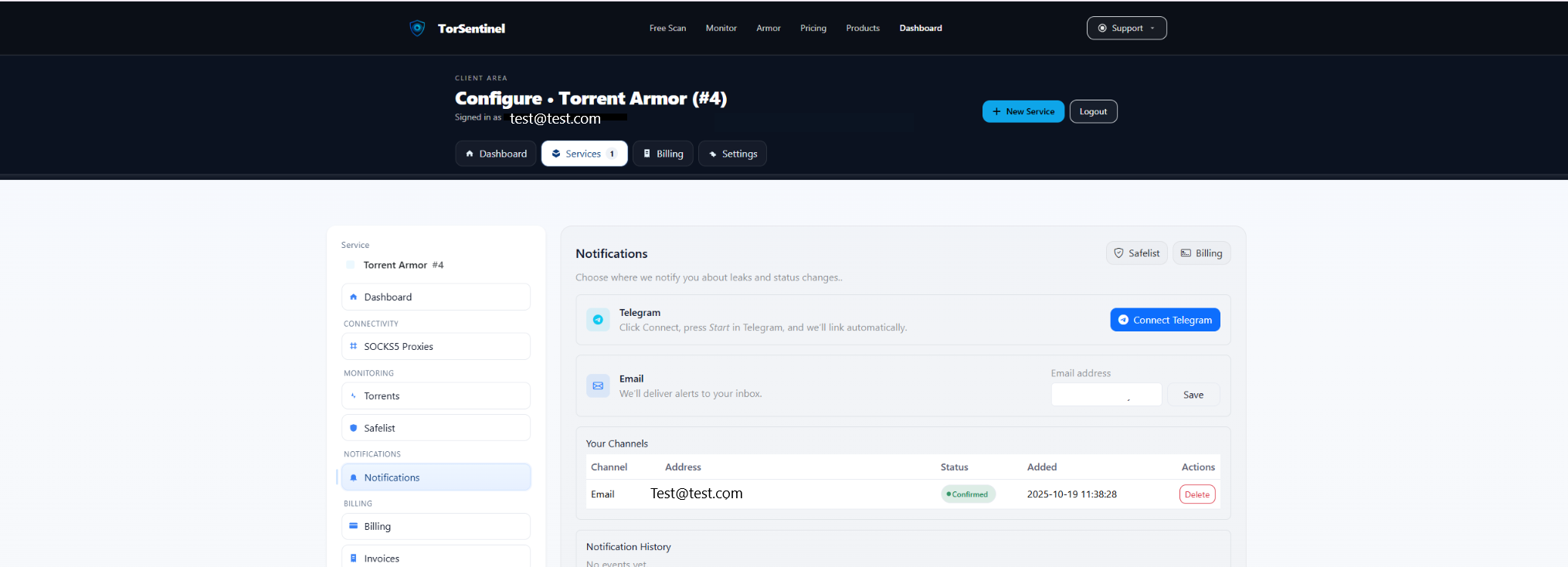
- Email: add & confirm.
- Telegram: connect bot → Start.
FAQ & Troubleshooting
Peers via SOCKS5 or only Trackers?
Trackers should be proxied. Peer proxying is optional; if connectivity drops, proxy trackers only.
Can I rely on VPN only?
Yes, but then announces will originate from the VPN egress. That’s the Monitor setup.
Rotating proxy/VPN IPs?
Safelist the proxy domain and/or a /24 covering your VPN egress ranges.