
Armor now includes SOCKS5 protection. Explore Armor →
TorSentinel TorSentinel
TorSentinel Blog

How to Set Up uTorrent with SOCKS5 Proxy (Anonymous Torrenting Guide)

TorSentinel Team
Blog / uTorrent SOCKS5 Setup
Guide uTorrent SOCKS5 Anonymous Torrenting

How to Set Up uTorrent with a SOCKS5 Proxy:
Anonymous Torrenting Step-by-Step

Without a proxy, every peer in the swarm, your ISP, and copyright monitoring agencies can see your real IP address. Setting up a SOCKS5 proxy in uTorrent routes your torrent traffic through a trusted server — the swarm sees the proxy IP, not yours. This guide walks through the full setup with real screenshots and shows you how to verify it works.

TorSentinel Team · Updated 2026 · 5 min read · Difficulty: Easy
qBittorrent connection settings showing SOCKS5 proxy configuration
What you'll need
  • uTorrent installed (3.x or later — this guide uses 3.6)
  • A SOCKS5 proxy with username/password auth — this guide uses TorSentinel Armor
  • About 5 minutes

? Why SOCKS5 and not a VPN for torrenting?

A VPN tunnels all your device traffic, which adds overhead and often reduces speeds. SOCKS5 works at the application level — only uTorrent's traffic goes through the proxy while your browser and other apps are completely unaffected. For torrenting specifically, SOCKS5 delivers faster speeds with the same IP protection. The key requirement is that your torrent client supports SOCKS5 with authentication, which uTorrent does natively under Preferences → Connection.

1

Go to TorSentinel and click Start Test

Before configuring anything, run a baseline check so you can see the difference. Visit torsentinel.com/torrent-ip-check and click Start Test. This generates a unique magnet link tied to your session.
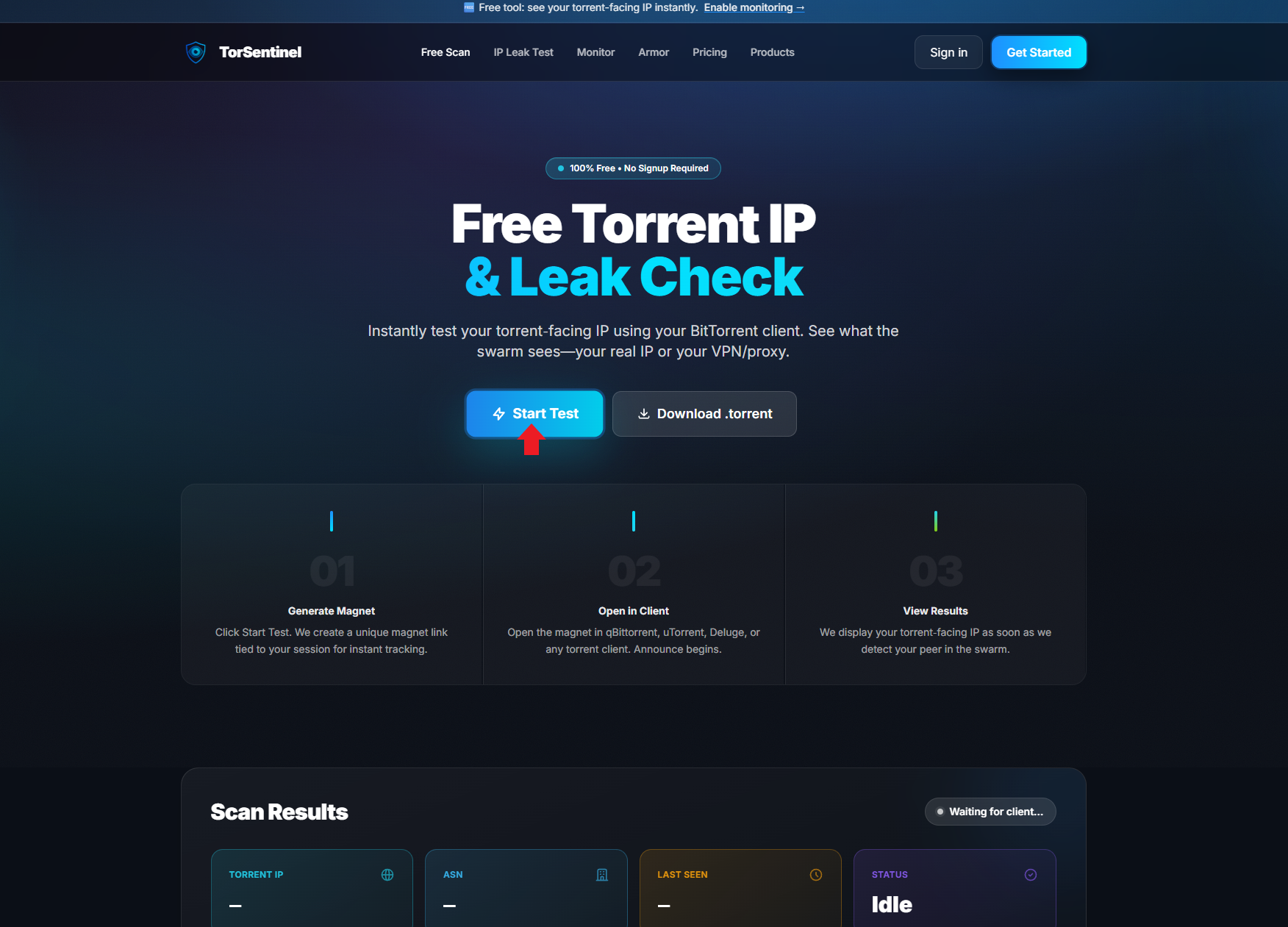
TorSentinel free scan page showing Start Test button highlighted with red arrow
Click Start Test — TorSentinel generates a unique magnet link for your session.
2

Open uTorrent Connection settings

In uTorrent go to Options → Preferences → Connection. By default, the Proxy Server section shows Type: (none) with all proxy fields greyed out. This is the unprotected state — your real IP is fully exposed.

uTorrent Preferences Connection tab showing Proxy Server type set to none — unprotected default state
Default state: Proxy Type is (none) — no protection. All fields are greyed out.
In this state, every peer in the swarm can see your real IP address. Continue to the next step to fix this.
3

Enter your SOCKS5 proxy details

Change the Type dropdown to Socks5. All proxy fields will activate. Fill them in exactly as shown below using your TorSentinel Armor credentials.
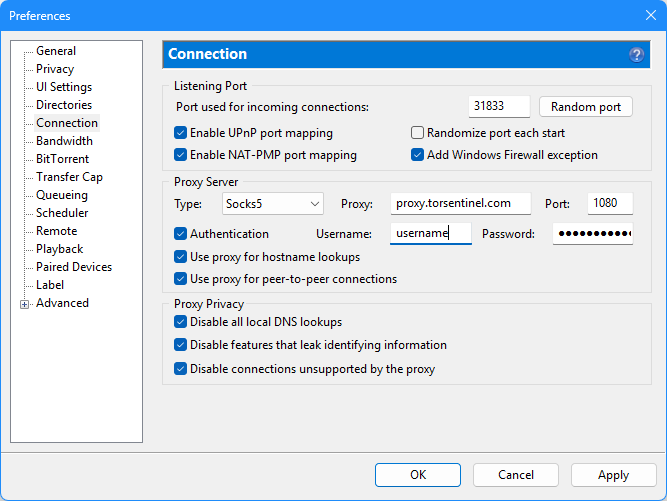
Proxy Server settings
Type Socks5
Proxy proxy.torsentinel.com
Port 1080
Authentication ☑ Checked
Username your Armor username
Password your Armor password
Checkboxes — all three must be checked
☑ Use proxy for hostname lookups
☑ Use proxy for peer-to-peer connections
Proxy Privacy — all three must be checked
☑ Disable all local DNS lookups
☑ Disable features that leak identifying information
☑ Disable connections unsupported by the proxy
uTorrent Connection preferences showing SOCKS5 configured with proxy.torsentinel.com port 1080 and all privacy checkboxes enabled
All three Proxy Privacy checkboxes must be enabled — these prevent DNS leaks and fallback connections that would expose your real IP.
The three Proxy Privacy checkboxes at the bottom are critical. If any are unchecked, uTorrent may fall back to direct connections or leak DNS queries outside the proxy.
!

Disable DHT, PEX, and Local Peer Discovery

Go to Preferences → BitTorrent. These three discovery features bypass the proxy and will expose your real IP in the swarm. Uncheck all of them.
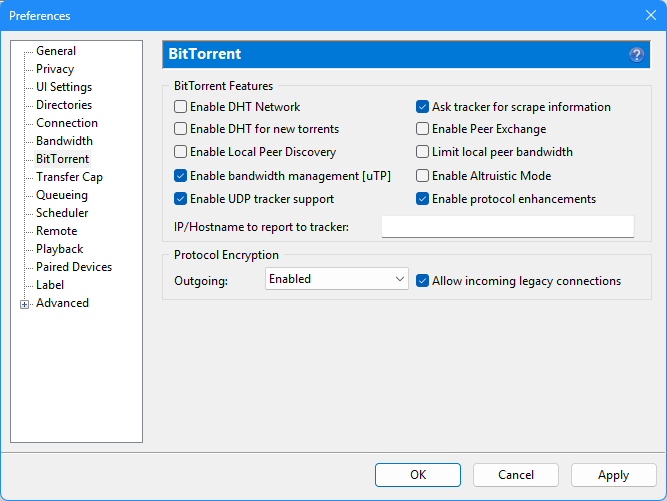
BitTorrent Features — uncheck these
Enable DHT Network
Enable DHT for new torrents
Enable Local Peer Discovery
Enable Peer Exchange
Protocol Encryption
Outgoing: Enabled
uTorrent BitTorrent preferences showing DHT Network, DHT for new torrents, Local Peer Discovery, and Peer Exchange all unchecked
DHT and PEX unchecked. These bypass the proxy — leave them off. Protocol Encryption set to Enabled.
DHT operates peer-to-peer outside the proxy tunnel. Even with SOCKS5 configured correctly, an active DHT will leak your real IP to the distributed network. Keep all four unchecked.
4

Verify your setup with TorSentinel

Click OK to save all settings. Now verify the proxy is actually working — not just configured. Follow these steps:

1

Go back to TorSentinel and click Open Client
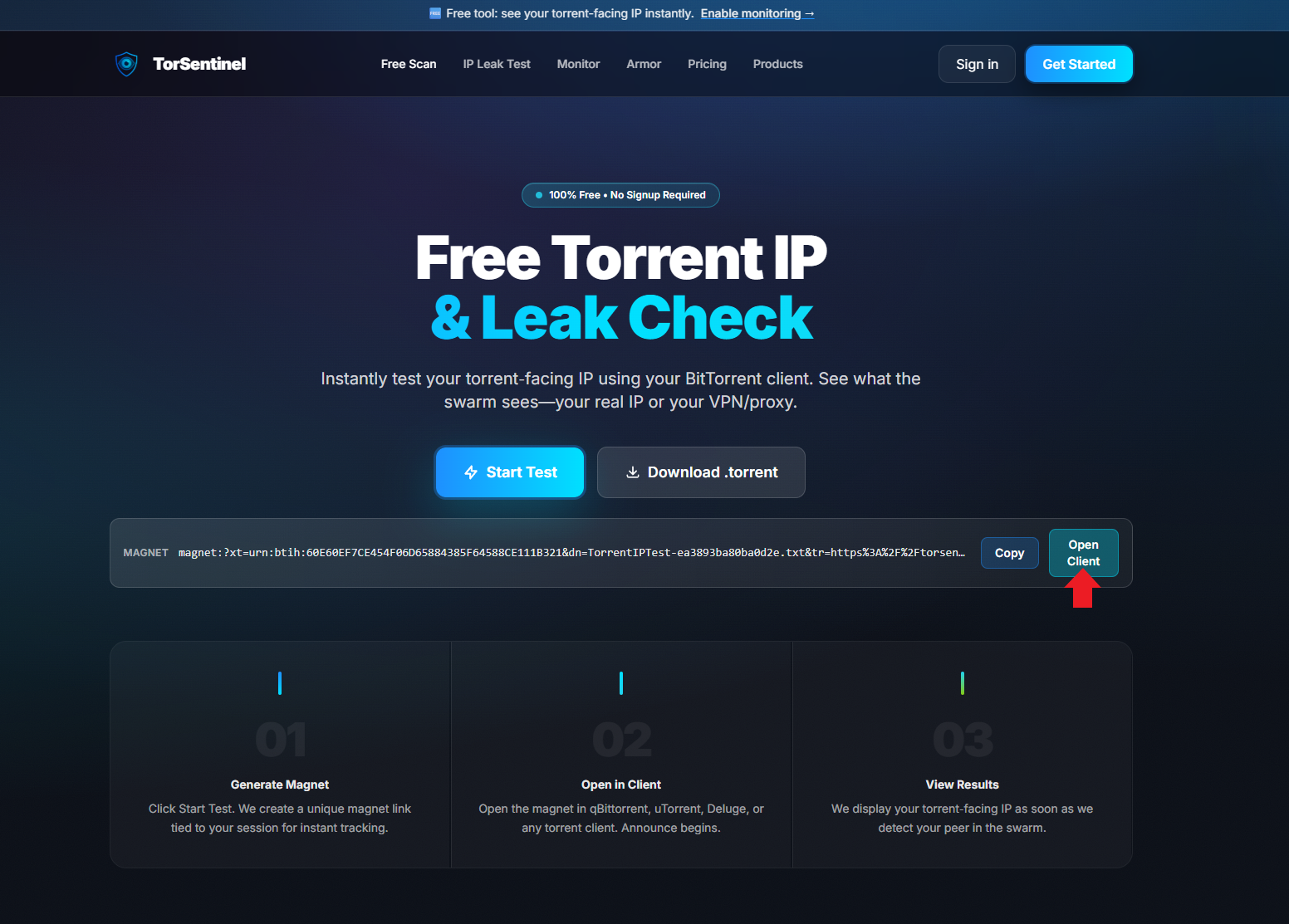
TorSentinel scan page showing the magnet link with Open Client button highlighted by red arrow
After clicking Start Test, the magnet link appears. Click Open Client to send it directly to uTorrent.
2

uTorrent opens the Add New Torrent dialog — click OK
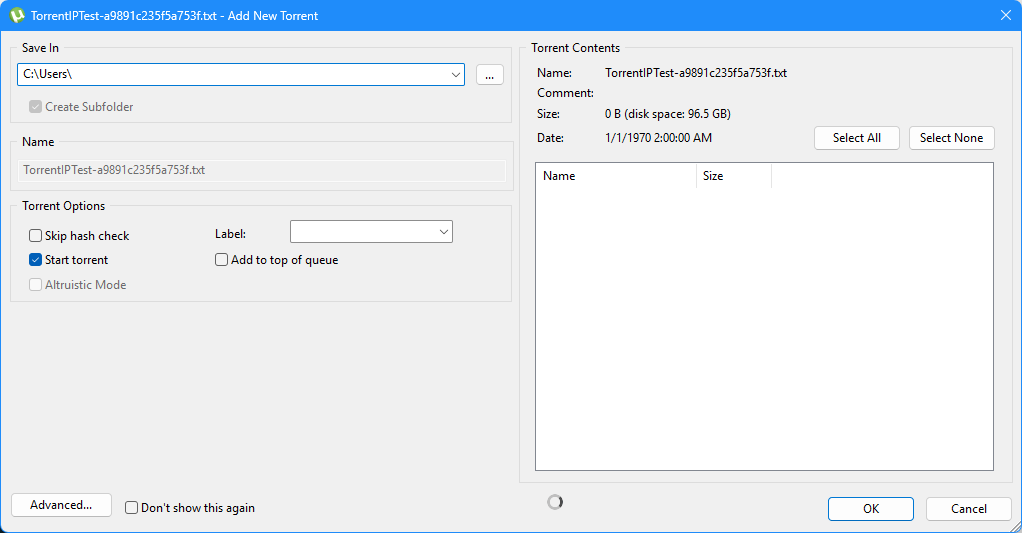
uTorrent Add New Torrent dialog showing TorrentIPTest file with Start torrent checked
The Add New Torrent dialog opens. Leave Start torrent checked and click OK.
3

Watch the Trackers tab — uTorrent connects to the TorSentinel announce URL
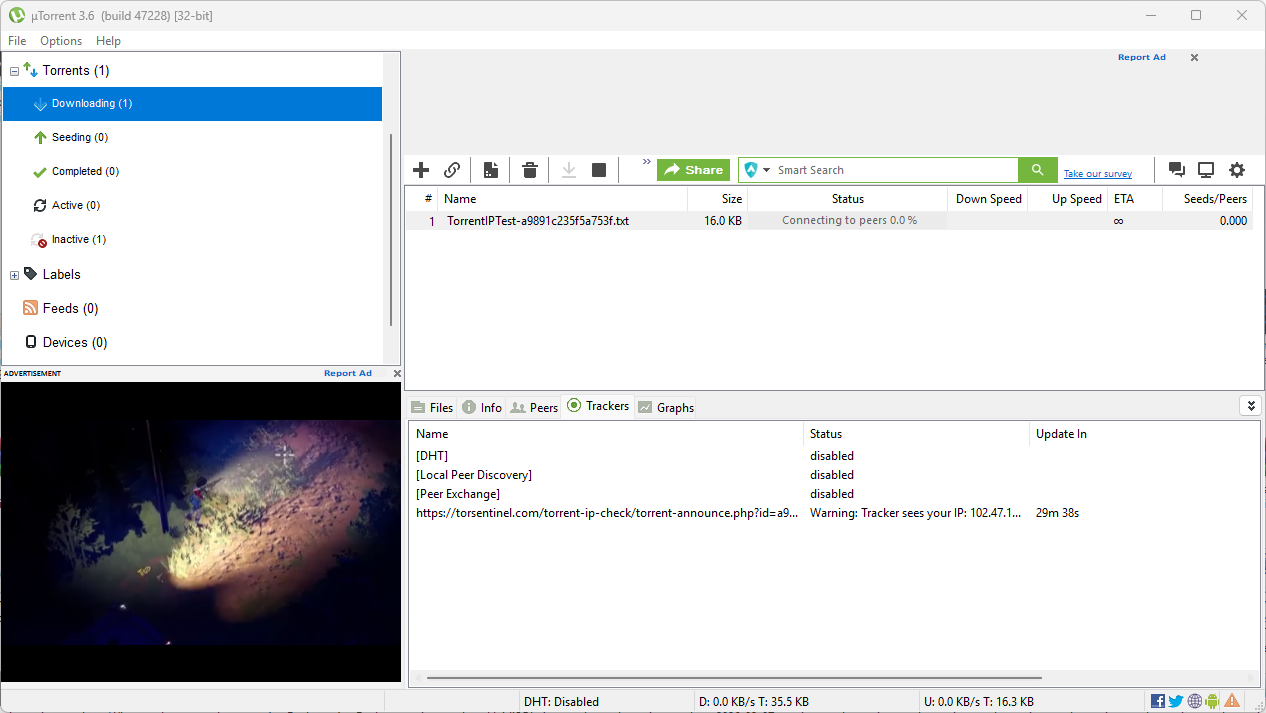
uTorrent Trackers tab showing TorSentinel announce URL with warning message showing the IP the tracker sees
The Trackers tab shows the TorSentinel announce URL. The status message reveals which IP the tracker is detecting — it should be your proxy IP.
If the status shows your real home IP address here — stop immediately. Go back to Step 3 and confirm all Proxy Privacy checkboxes are enabled and DHT is disabled.
4

Switch back to TorSentinel — the Scan Results panel updates live
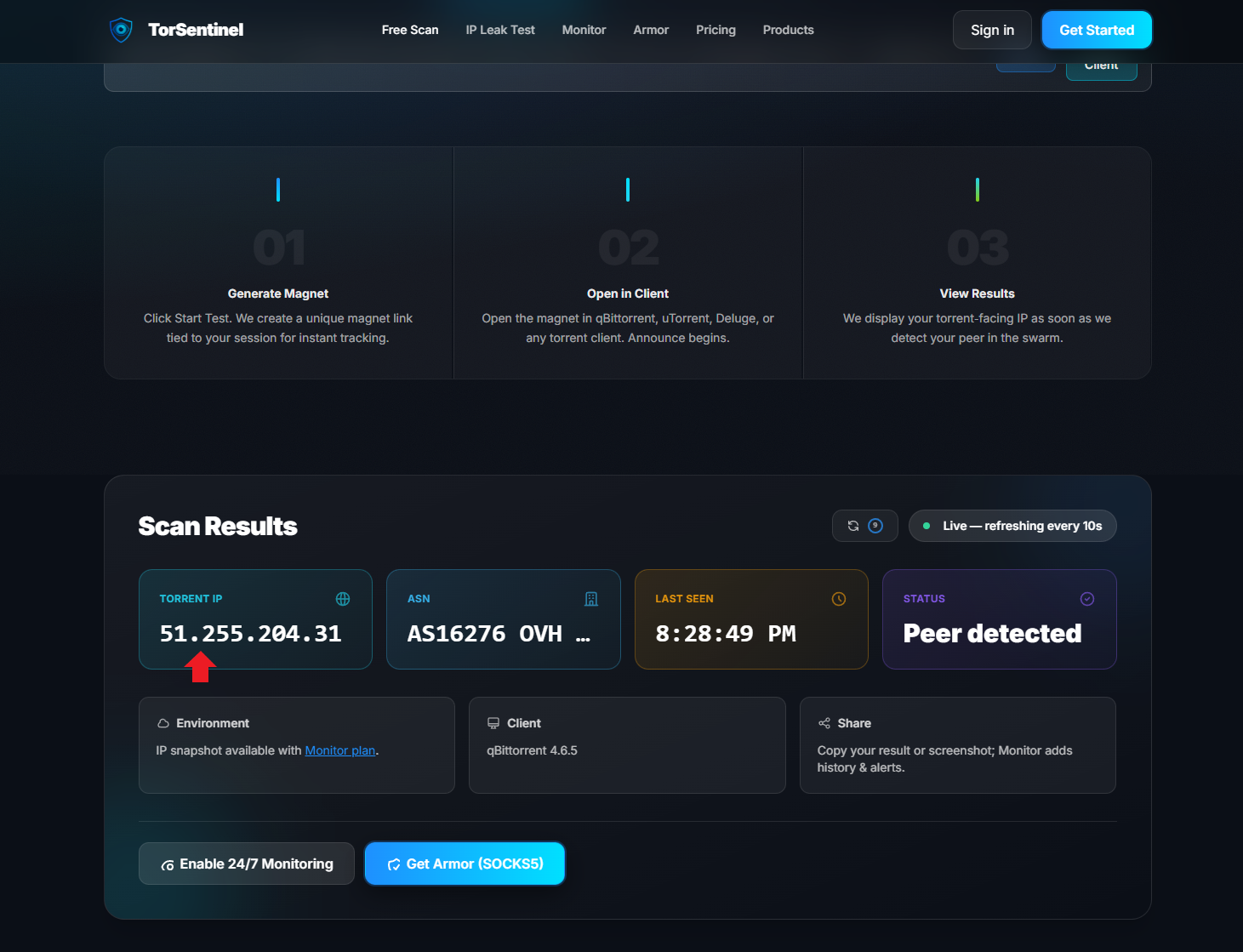
TorSentinel scan results showing Torrent IP 51.255.204.31 detected as OVH provider with Peer detected status
Scan Results show the proxy IP (51.255.204.31 — OVH) detected in the swarm. Status: Peer detected. Your real IP is hidden.

What good results look like

Torrent IP shows a proxy datacenter IP (e.g., OVH, Hetzner, Fastly) — not your ISP
ASN shows a cloud or proxy provider — not your home ISP's network
Status shows Peer detected — the test successfully found your client
Client field shows uTorrent — confirming which client announced to the swarm

💡 uTorrent-specific notes

Port 1080 vs 1085: TorSentinel Armor accepts both ports. Use 1080 as the default. If your network blocks 1080, try 1085.
UPnP / NAT-PMP: the screenshots show UPnP and NAT-PMP enabled in Connection settings. On a home router this is usually fine, but on a shared or untrusted LAN, disable both.
µTP (uTP): uTorrent has µTP enabled by default for bandwidth management. This is fine — µTP runs through the SOCKS5 proxy in uTorrent's implementation.
Listening port: the screenshots show port 31833. Pick any fixed port you prefer — randomizing the port on each start makes firewall rules harder to maintain.
Verify after restarts: uTorrent saves proxy settings persistently, but always re-run the TorSentinel check after a Windows update or uTorrent update to confirm nothing reset.
Setup checklist
Preferences → Connection → Type: Socks5
Proxy: proxy.torsentinel.com — Port: 1080
Authentication checked — username and password entered
Use proxy for hostname lookups — checked
Use proxy for peer-to-peer connections — checked
All 3 Proxy Privacy boxes checked (DNS, leak features, unsupported connections)
BitTorrent → DHT Network, DHT for new torrents, Local Peer Discovery, Peer Exchange — all unchecked
Verified with TorSentinel — Scan Results show proxy IP, not your real IP

FAQ Troubleshooting

TorSentinel shows my real IP, not the proxy IP
Check that all three Proxy Privacy boxes are enabled. If any are unchecked, uTorrent may make direct connections. Also confirm DHT Network and Peer Exchange are disabled — these bypass the proxy entirely.
Tracker status shows "Could not connect to tracker"
Double-check the proxy hostname (proxy.torsentinel.com) and port (1080). Verify your Armor username and password are correct. If port 1080 is blocked on your network, try port 1085.
Download speeds are slower than usual
Some speed reduction is normal when routing through a proxy. If speeds are significantly impacted, check that µTP is enabled in Preferences → BitTorrent (it helps with congestion). You can also try a different Armor server region if multiple are available in your plan.
Scan Results shows "Idle" and never updates
The test torrent needs to announce to the TorSentinel tracker. Check the uTorrent Trackers tab for the torsentinel.com/torrent-ip-check/torrent-announce URL and confirm its status. If it says "Connection refused", the proxy isn't passing tracker traffic — recheck the Connection settings.
Keep your setup verified 24/7

Get TorSentinel Armor + Monitor

Armor provides the SOCKS5 proxy. Monitor watches your torrent-facing IP around the clock and alerts you the moment something changes — so you know before anyone else.