
WireGuard VPN with Port Forwarding —
Built for Torrent Seeders
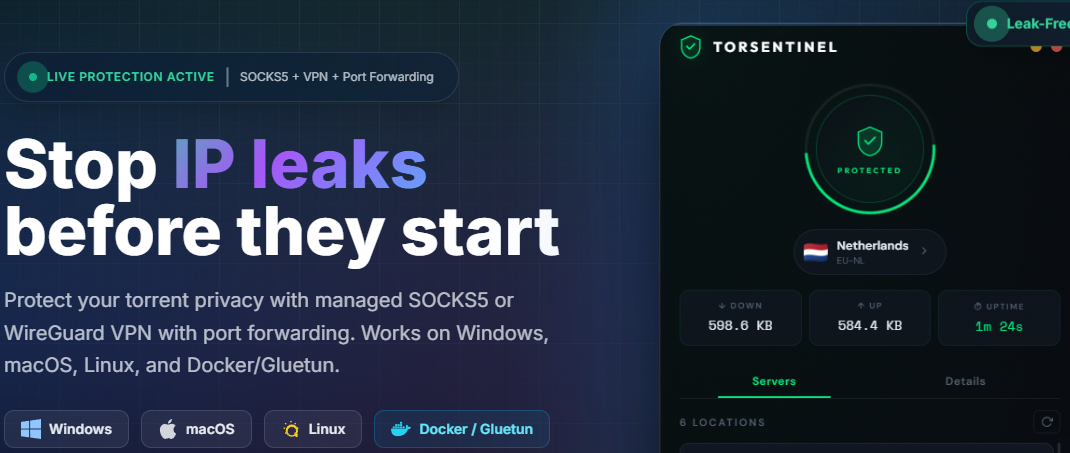
Most VPNs block incoming connections entirely, which kills your seeding ratios on private trackers. The TorSentinel VPN app is different — every one of its 6 server locations comes with pre-configured TCP and UDP port forwards that are live the moment you connect. System-wide WireGuard protection, zero router configuration, and forwarded ports ready to paste straight into your torrent client.
- ✓ Windows 10 or 11
- ✓ A TorSentinel Armor subscription — provides VPN access and your port forwards
- ✓ A torrent client with a configurable listening port (qBittorrent, Deluge, Transmission, etc.)
- ✓ About 5 minutes
? Why does port forwarding matter for seeders?
When you connect to a regular VPN, your torrent client is stuck behind NAT — other peers can only reach you if you initiate the connection first. This cuts you off from a large portion of the swarm and tanks your upload speed and ratio.
Port forwarding punches a hole through the NAT so that peers can connect directly to your listening port. On private trackers where upload ratio determines your standing, this is the difference between hitting your required ratio and getting disabled.
Download the app and sign in
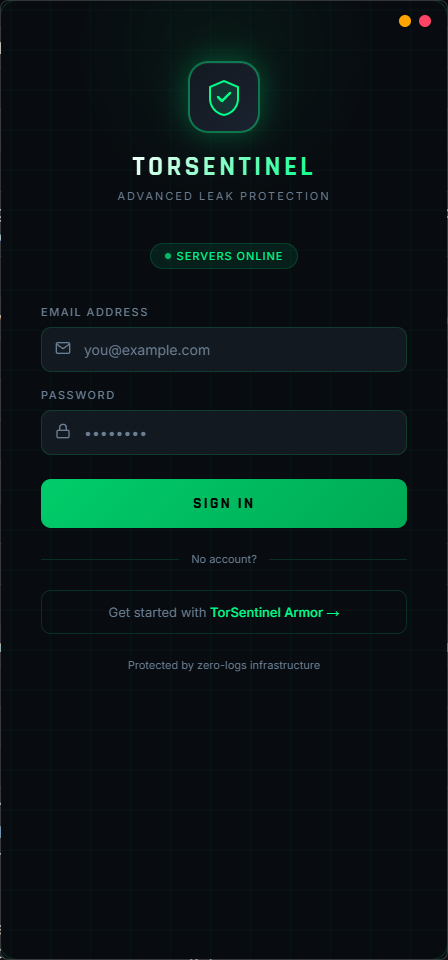
The VPN app is included free with every Armor subscription. Download and run the installer — no admin rights required. On first launch you'll see the sign-in screen. Enter your Armor account email and password. The app will pull your VPN configurations and server list automatically.
Choose your server location
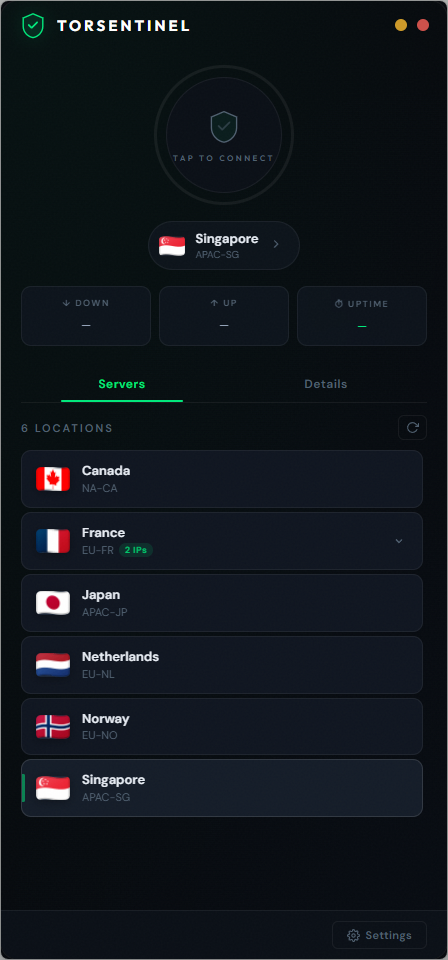
After signing in you'll land on the main dashboard with the Servers tab open. The app lists all 6 locations — tap any row to select it as your active server, then tap the ring to connect. France has 2 IPs available, giving you 8 forwarded ports across those two entries.
Tap the ring to connect
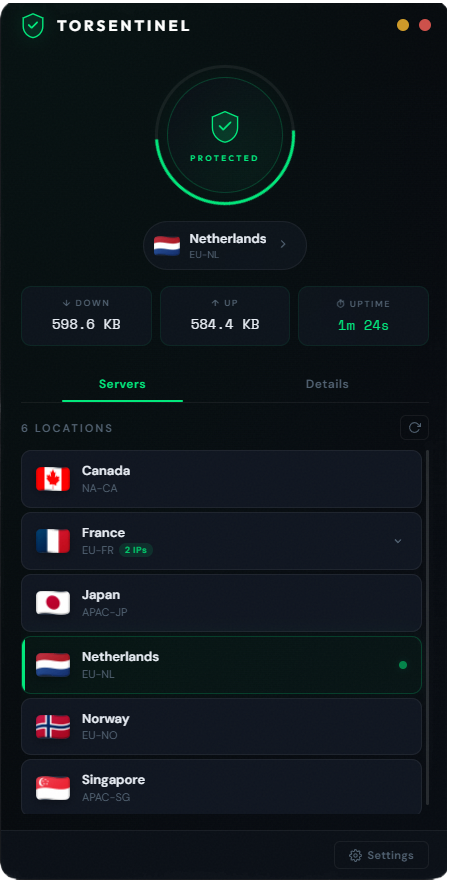
Tap the large ring on the dashboard. It transitions from TAP TO CONNECT to the animated green PROTECTED ring in a few seconds. The live ↓ DOWN / ↑ UP counters and session uptime start running immediately. Your entire system's traffic is now tunnelled through WireGuard.
Find your forwarded ports in the Details tab
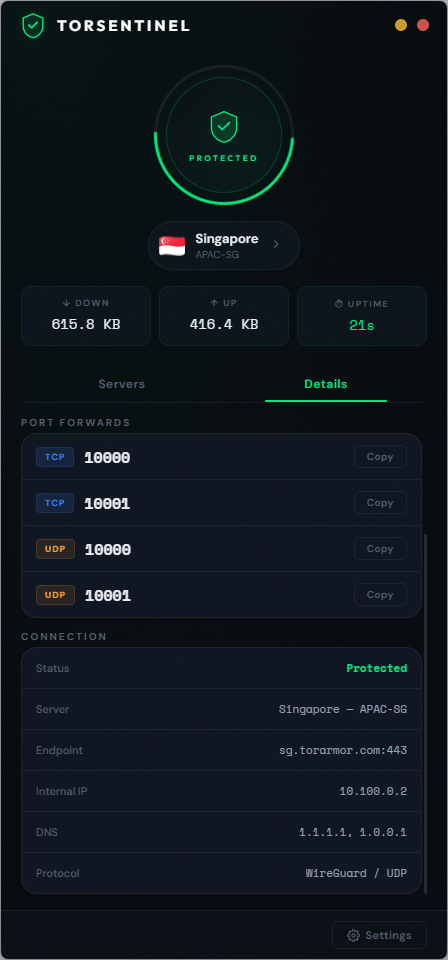
Tap the Details tab while connected. Under PORT FORWARDS you'll see your assigned TCP and UDP port pairs with a Copy button next to each. You'll also see your full connection details — server endpoint, internal IP, DNS, and protocol confirmation (WireGuard / UDP).
Set the listening port in your torrent client
Copy one of the TCP port numbers from the Details tab and paste it as the listening/incoming port in your torrent client. Use the same port number for TCP and UDP if your client has separate fields.
"peer-port" in settings.json)
Configure Kill Switch and auto-connect (optional but recommended)
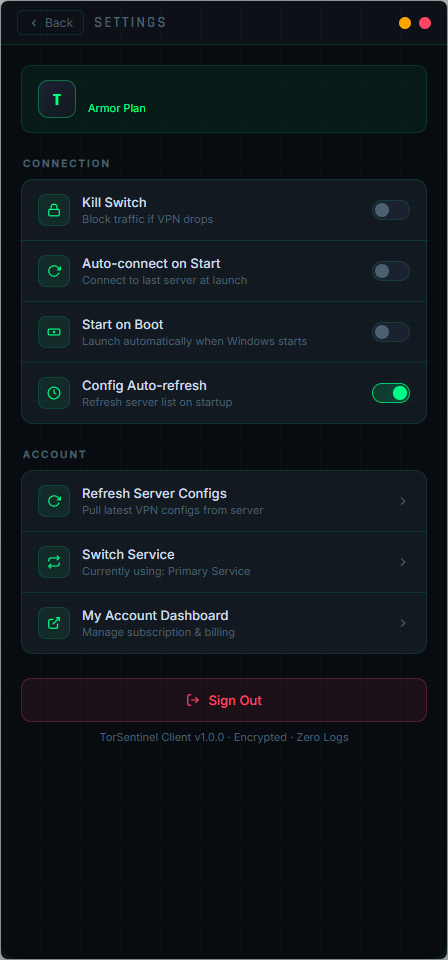
Tap Settings (bottom-right gear icon) to find connection options that harden your setup. These are especially important for always-on seedboxes and machines that restart automatically.
✓ What a correctly configured setup looks like
💡 Tips and notes
VPN_SERVICE_PROVIDER=custom and the pre-configured port forward will work identically in your container stack.FAQ Troubleshooting
The ring connects but the port test in my client says the port is closed
Kill Switch is blocking my internet after the VPN disconnected
TorSentinel IP scan still shows my real IP after connecting
Connection fails — "could not connect to server"
Can I use the WireGuard config with Gluetun / in Docker?
.conf WireGuard config files for each location. Use them with Gluetun (VPN_SERVICE_PROVIDER=custom), any WireGuard-compatible container, or the official WireGuard client on Windows. The pre-configured port forwards work identically in all of these.
Get Armor — Unlock the VPN App
Armor gives you the WireGuard VPN app with pre-forwarded ports, the SOCKS5 Proxy Auto-Config app, and 24/7 realtime leak monitoring — all in one plan at $9.99/mo.