
This guide shows you how to configure qBittorrent for strong IP-leak protection without sacrificing day-to-day performance. It balances step-by-step instructions for home users with deeper notes for power users.
Goal and threat model
Our goal is to reduce the chance that your real IP appears in a swarm or a tracker due to timing gaps, misconfigurations, or UI exposure. This guide focuses on: (1) network interface binding; (2) discovery scope (trackers/DHT/PEX); (3) Web UI hygiene; (4) firewall defaults; (5) DNS consistency; and (6) safe restart behavior.
Prerequisites
- qBittorrent 4.x or later.
- Administrator access to your OS/network settings.
- If you use a tunnel or proxy, know the adapter name or proxy endpoint.
1) Bind qBittorrent to a trusted interface
Binding ensures qBittorrent only sends/receives traffic over your trusted adapter. If that adapter is down, the client should not silently route over your default interface.
- Open Tools → Options → Advanced.
- Set Network Interface to the adapter you trust (e.g., your VPN\proxy interface). Avoid Any interface.
- Set Optional IP address to bind to if you want to force a specific local IP on that interface.
Tip: after binding, briefly stop all torrents, then restart qBittorrent and verify peers connect only when the trusted adapter is up.
2) Scope discovery: trackers, DHT, and PEX
Peer discovery accelerates downloads but also broadens where your endpoint can appear. Tune it to your tolerance.
- Trackers: Prefer reputable tracker lists; remove unknown auto-added entries.
- DHT: Fast and resilient. If your model is strict, limit DHT usage or disable it for select torrents.
- PEX: Grows swarms quickly; consider disabling for private-tracker rules or stricter privacy needs.
In Options → BitTorrent, toggle DHT and PEX to match your threat model. Private trackers often require DHT/PEX off.
3) Transport and ports
- Listening port: Use a fixed port you control. Disable UPnP/NAT-PMP if you do not trust your LAN/router policy.
- Protocol: TCP is predictable for firewall rules. µTP can help with congestion but may complicate inspection. Choose based on your environment.
- Encryption: Prefer enabled/forced if compatible with your peers/trackers; otherwise allow but prefer encrypted.
4) Web UI hygiene (critical if headless or remote)
The Web UI is a frequent exposure point. Harden it like production software:
- In Options → Web UI, enable authentication with a strong, unique password.
- Change the default port; avoid exposing the UI to the open internet.
- Use an allowlist (e.g., 127.0.0.1 or your admin IPs) when possible.
- If using a reverse proxy, enforce HTTPS, rate limits, and IP allowlists at the proxy.
5) Firewall policy: deny-by-default outside the trusted path
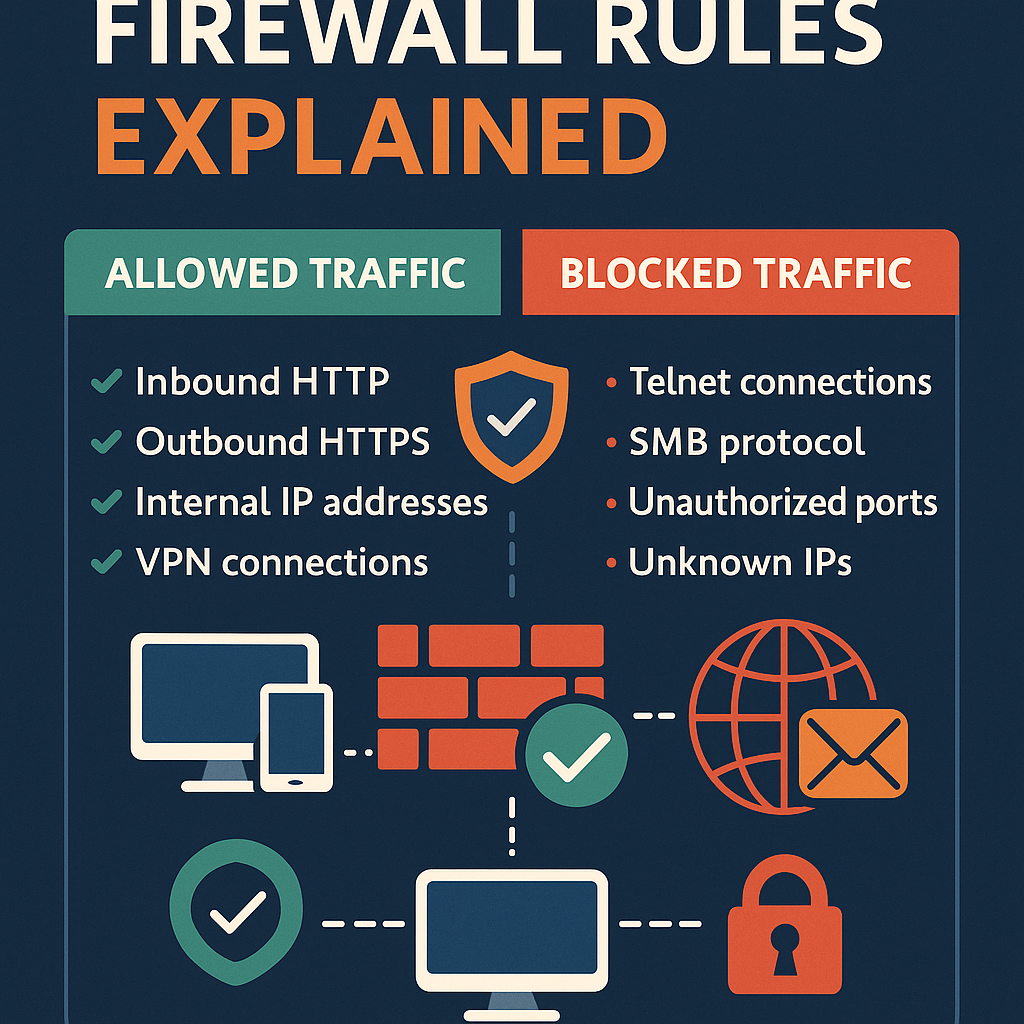
Set your OS firewall to prevent qBittorrent from sending traffic unless the trusted interface is available.
Concept: Allow qBittorrent → trusted adapter; deny qBittorrent → any other adapter. If the adapter is down, traffic fails closed.
6) DNS consistency and IPv6 handling
After reboots or adapter changes, resolvers may shift. Confirm that your DNS and IPv6 policies remain consistent with your intended configuration.
- Decide whether you allow IPv6 for torrent traffic. If not, explicitly disable/route it for the client.
- Use a resolver you control/trust. Verify after restarts that it hasn’t reverted.
7) Safe startup and restart windows
Many leaks happen during boot: the OS starts, your tunnel or proxy is not yet ready, and qBittorrent autostarts. Avoid that race condition.
- Disable qBittorrent autostart or delay it until the trusted interface is confirmed up.
- On headless systems, use a service dependency that waits for the adapter.
8) Private vs public trackers (rules and visibility)
Private trackers improve curation and reduce fakes but come with rules (e.g., no DHT/PEX, ratio requirements). Public trackers plus DHT/PEX are fast but widen visibility. Match your choice to your tolerance and ensure your config respects tracker policies.
9) Minimal hardening checklist (copyable)
- Bind network interface → trusted adapter.
- Set fixed listening port; disable UPnP/NAT-PMP if untrusted LAN.
- Scope DHT/PEX per threat model or tracker rules.
- Prefer encryption where compatible.
- Web UI: strong auth, non-default port, IP allowlist, no open internet exposure.
- Firewall: allow only via trusted adapter; deny otherwise.
- DNS: verify resolver after restarts; decide IPv6 policy explicitly.
- Autostart: delay until adapter is up or start manually.
Troubleshooting quick wins
- No peers after binding? The trusted adapter may be down or DNS is failing—verify adapter state and resolver.
- Web UI sluggish behind a proxy? Check keep-alive, buffering, and rate limits on the proxy.
- Random timeouts? Inspect router logs for conflicts on port forwarding or aggressive intrusion rules.
Key takeaways
- Binding + firewall deny-by-default is the foundation of leak resistance.
- Scope discovery (DHT/PEX) and keep Web UI access private and authenticated.
- Address DNS/IPv6 policy explicitly; verify after restarts.
- Eliminate restart races by delaying autostart until the trusted interface is up.